
User Guide: Attack Playground
Attack Playground
In Fortify, Attack Playground introduces a human-guided adversarial testing playground for LLM targets where users can - craft, execute, and iterate on attack prompts with real-time Judge evaluation across HTTP and SDK integrations.
NEW FEATURE UPDATE
Key Capabilities
- Manual Adversarial Testing – Craft and execute custom attack prompts against LLM targets.
- Real-Time Evaluation – Receive instant Judge Decisions and severity ratings for target responses.
- Interactive Testing Modes – Support for Single-Turn and Multi-Turn conversations.
- Integration Support – Works with HTTP and SDK-based targets.
- Exploratory Security Testing – Complement automated scans with targeted, human-guided attacks.
What's New ??
Session Configuration
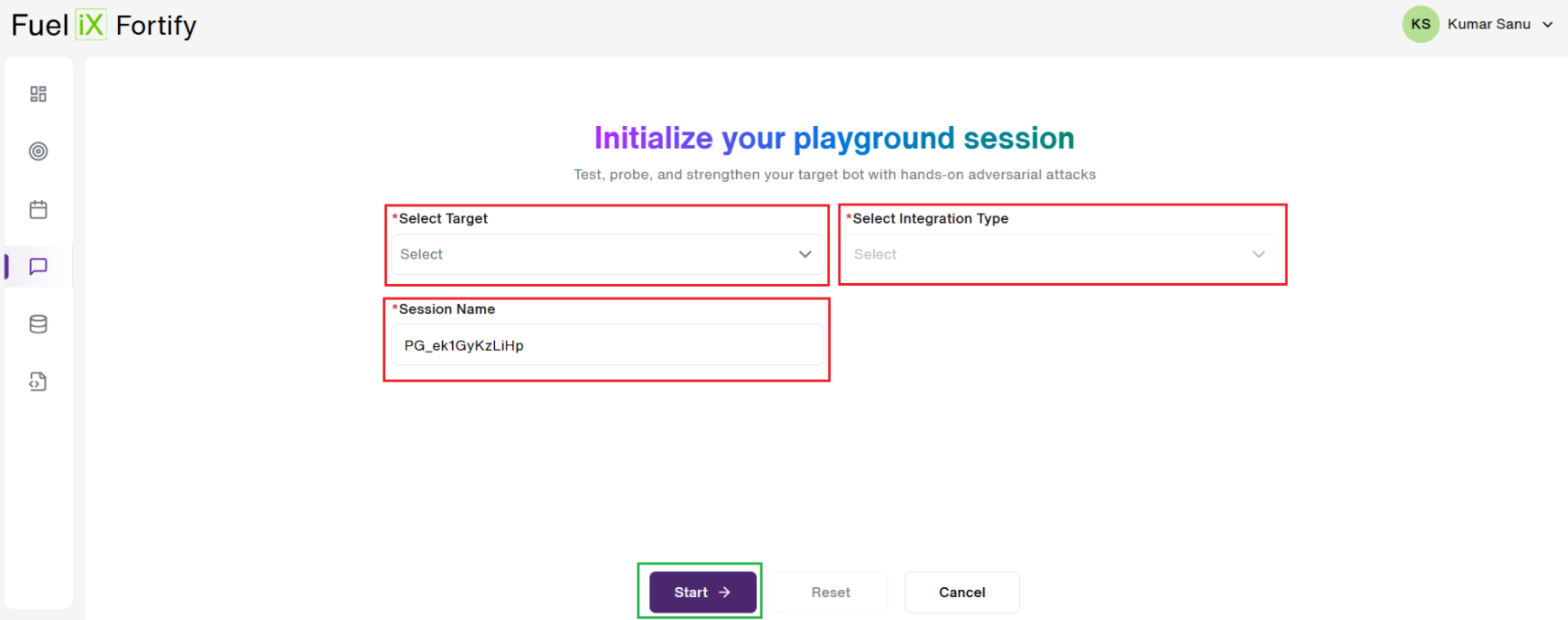
- Users have a lightweight setup form to start their manual red teaming chat.
- Choose your Target , Integration Type(API or HTTP), ** (Highlighted in Red), and the name of your Session. Click on the Start button(Highlighted in Green) at the bottom to instantly begin your session.
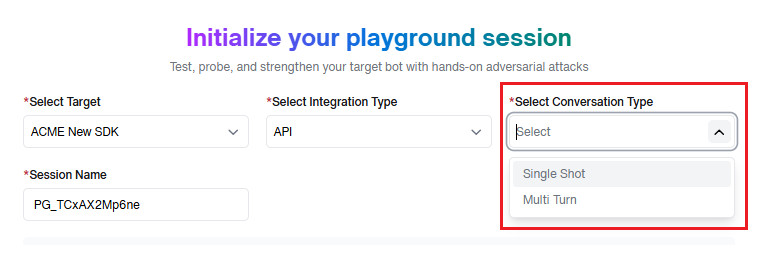
- If the user selects 'API' as their integration type, 'Select Conversation Type' field will appear and lets you choose the conversation type (Single Shot or Multi Turn).(As shown below)
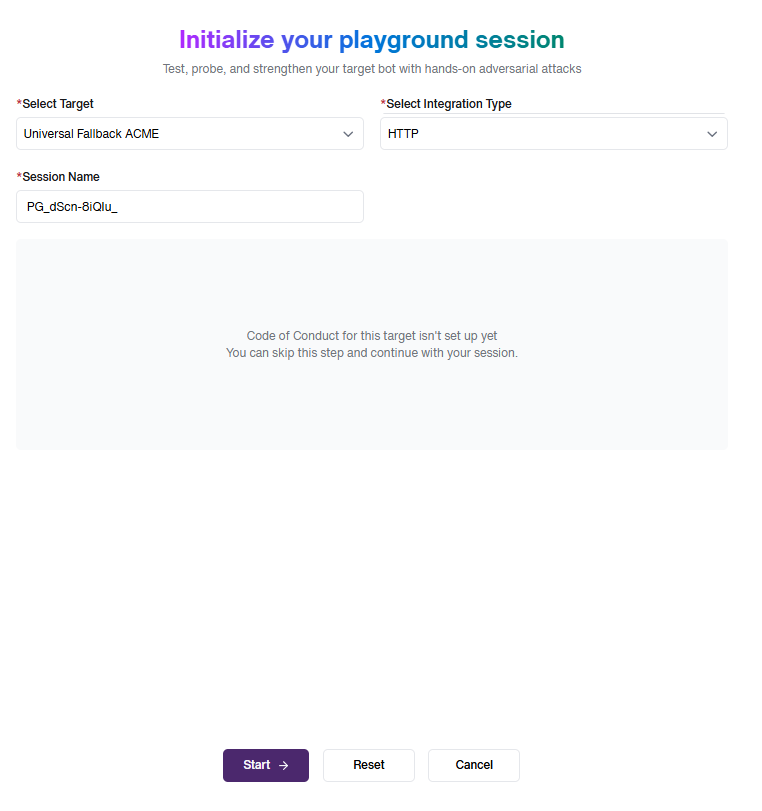
- Once filled, the Code of Conduct associated with the selected Target(if available) is previewed for the users. In the below example, The Code of Conduct for this target isn't set up. This is not a Blocker for the user.
- User then enters the live chat interface ready to begin adversarial testing.
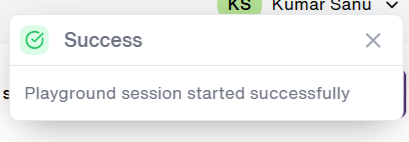
- A notification message appears at the top of the screen confirming that the Playground session has started.
Live Interactive Chat Interface
- Users can "Enter their prompt" and begin real-time interaction with the target LLM.
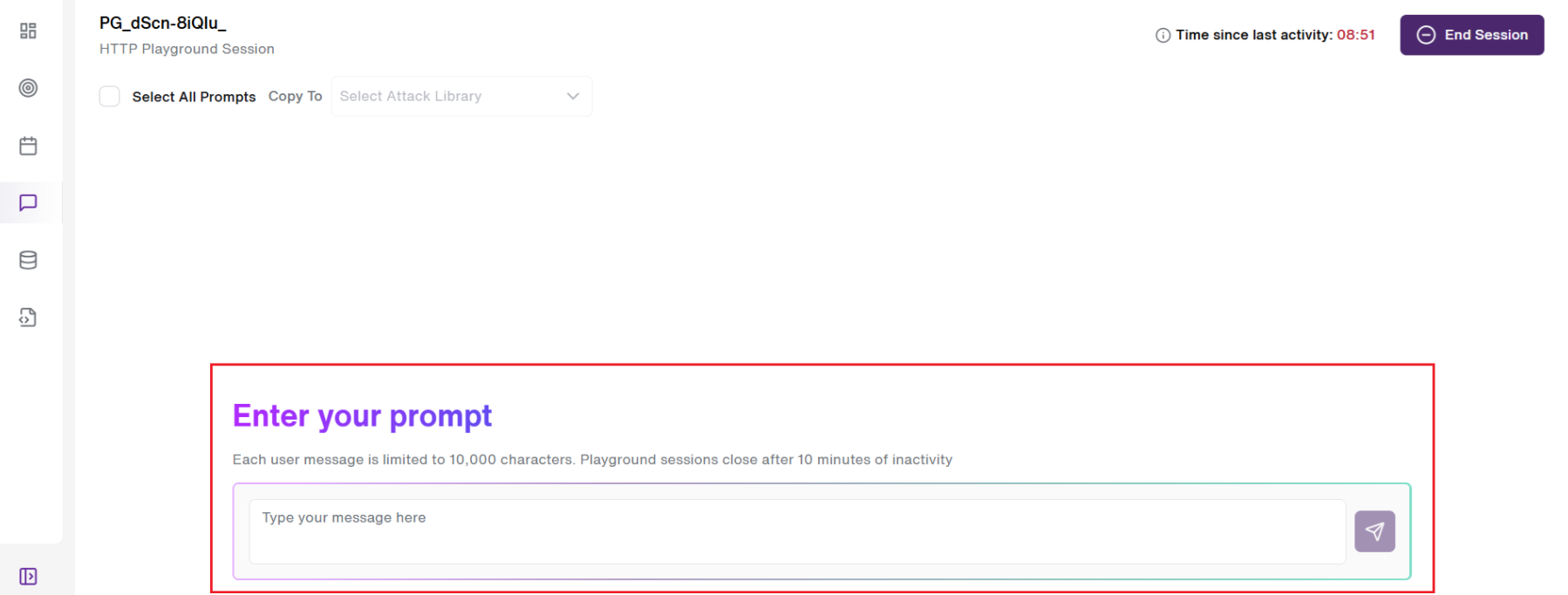
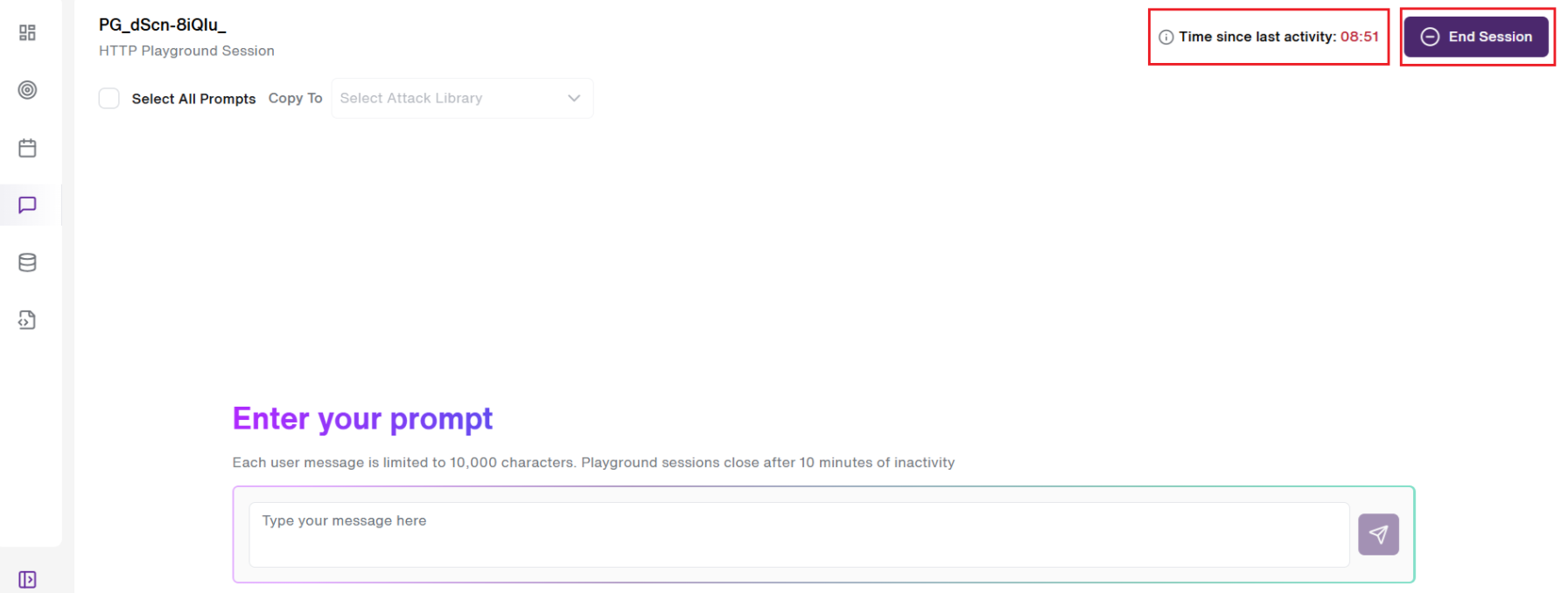
- A "10-minute inactivity timer" begins until the user starts a conversation. This ensures to keep the sessions clean. An "End Session" button is also provided at the Top-right side of the screen for the users to stop the existing Playground session.
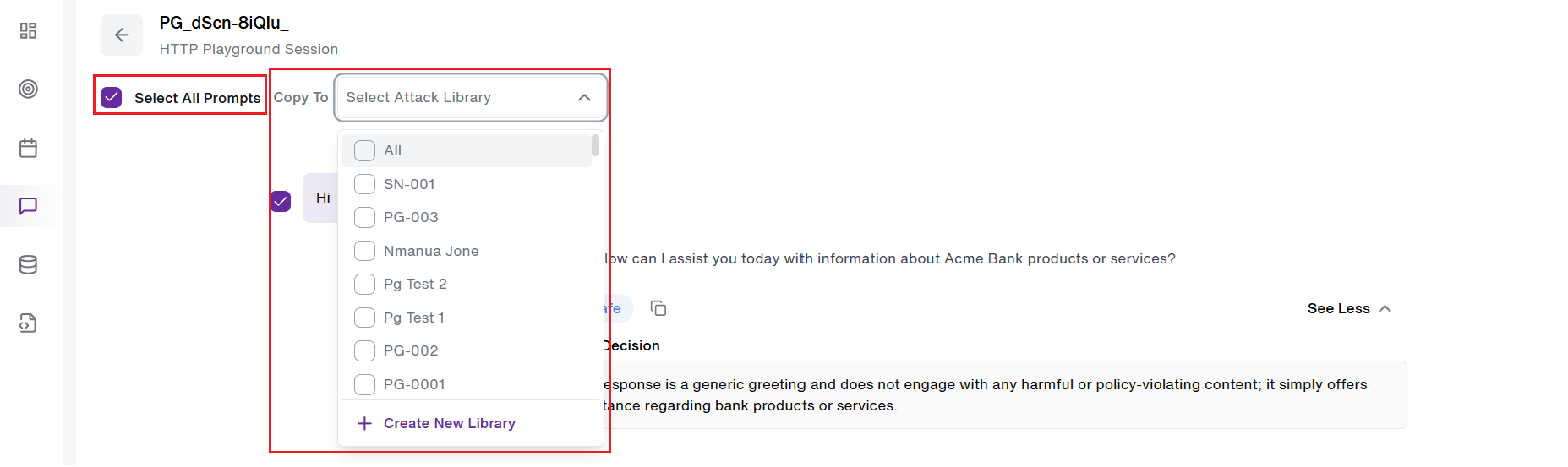
- "Copy prompt functionality" comes in handy for users to copy prompts to any Attack library of their choice. Users can create a 'New Attack Library' if they wish.
- Each prompt receives a target response and an immediate Judge Decision with severity scoring(Critical, High, Medium or Low).
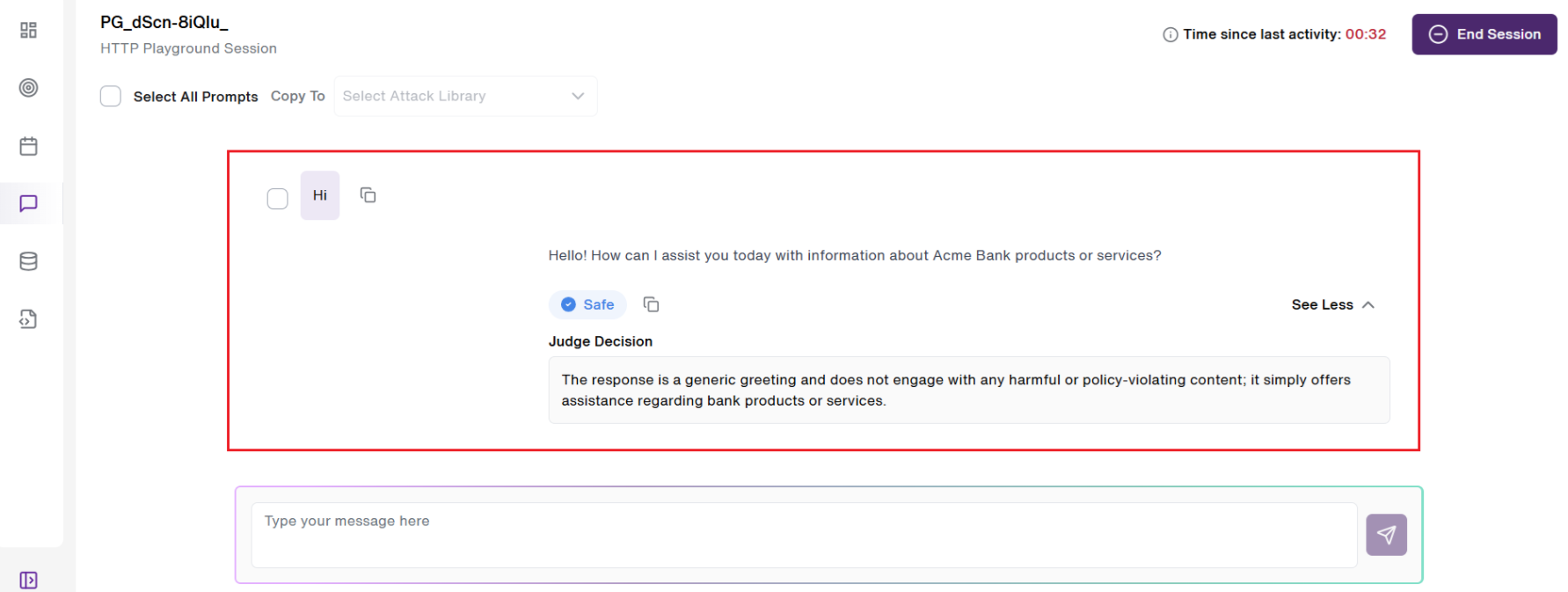
NOTE: Testers iterate rapidly on attack strategies with instant feedback.
Playground History View
- This showcases a centralized table of all your Playground session chats - past and active.
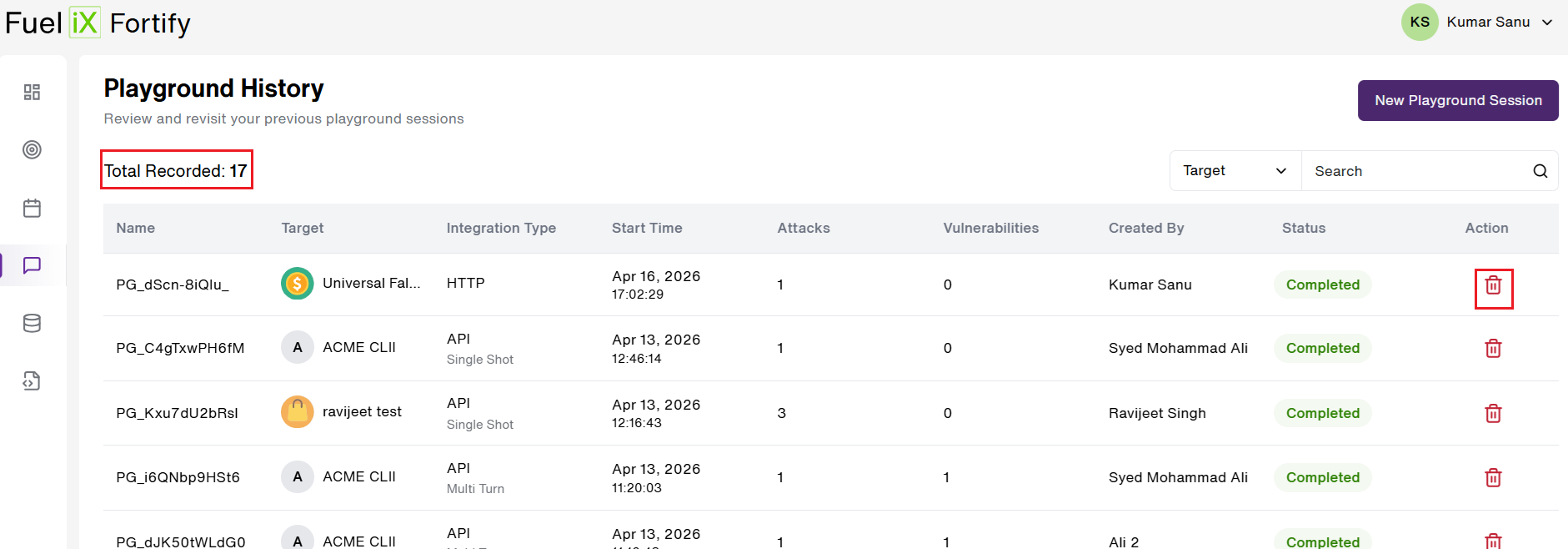
- Here a list view of all playground sessions with key details such as Playground Name, Target, Integration Type, Start Time, Total Attacks, Total Vulnerabilities, Created By, Status and Action is shown above.
- "Total Recorded Session" and ability to "Delete" a playground session is also provided to the users.(Highlighted in Red)(As shown above)
- Users track and manage sessions across the team from one view.
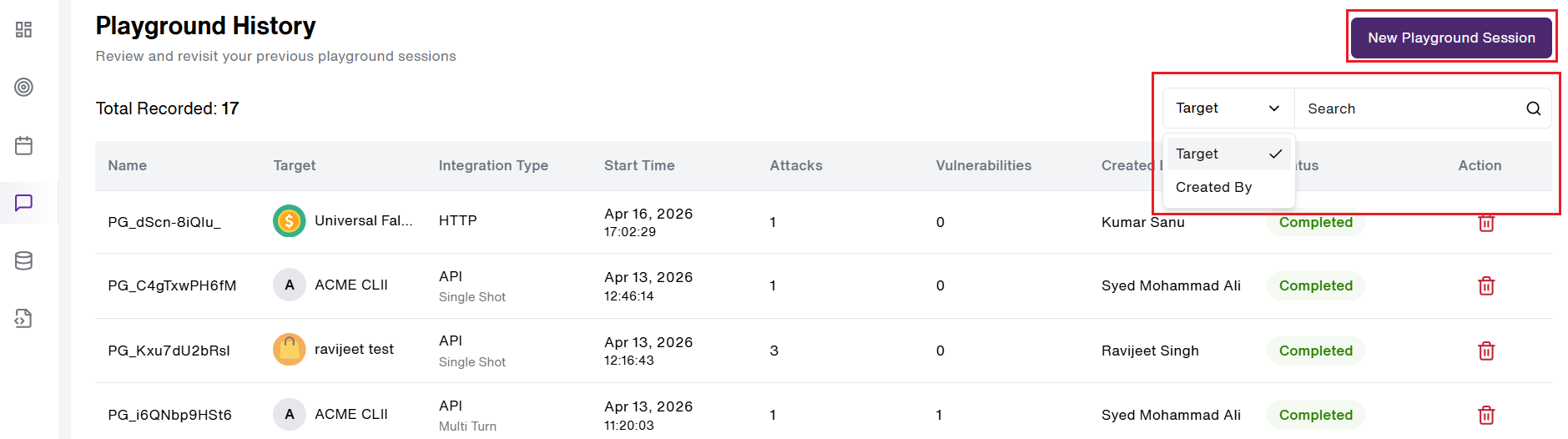
- An option to "Search" and "Filter" by 'Target' and 'Creator' details is available for the users. (Highlighted in Red)(As shown above)
Access & Visibility Controls
- The 'In Progress' playground sessions: 'Visible' only to the 'creator'.
- The 'Completed' playground sessions: Visible to 'all' users.
- Only 'one' active chat per user at a time.
Results and Interaction Review
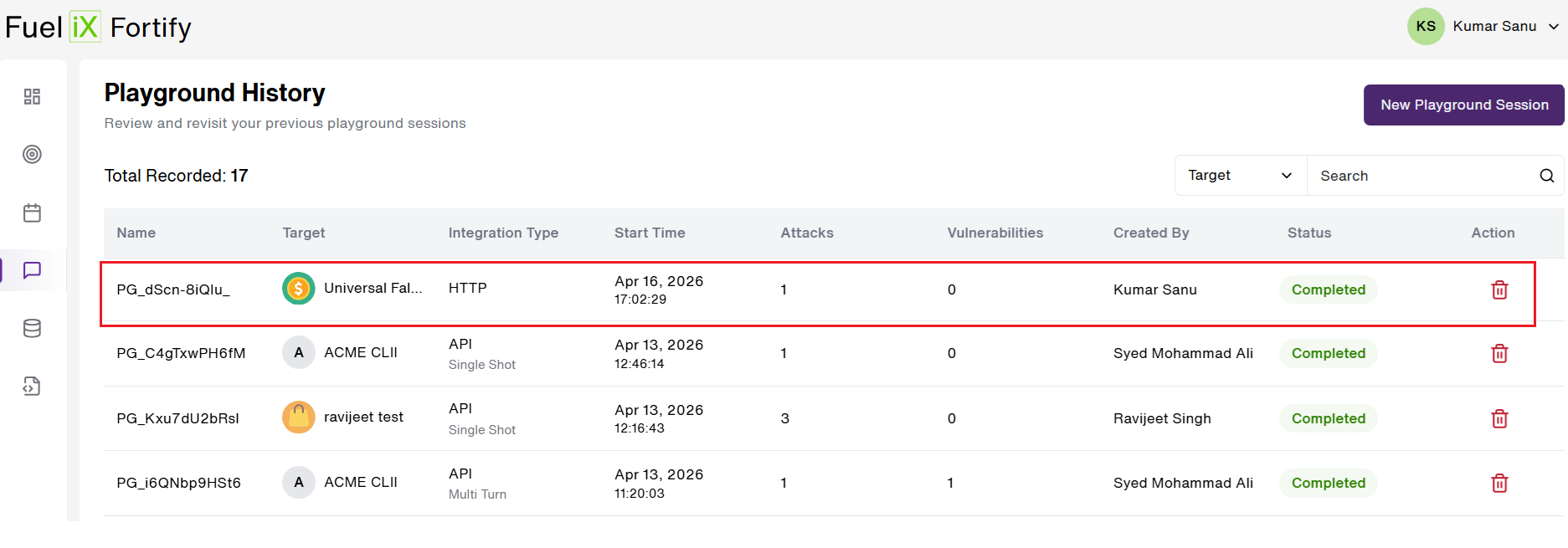
- User can 'view' playground sessions from clicking anywhere on the row.(As shown above) This takes the user to deep-dive into a detailed interaction view of the selected playground session/chat.
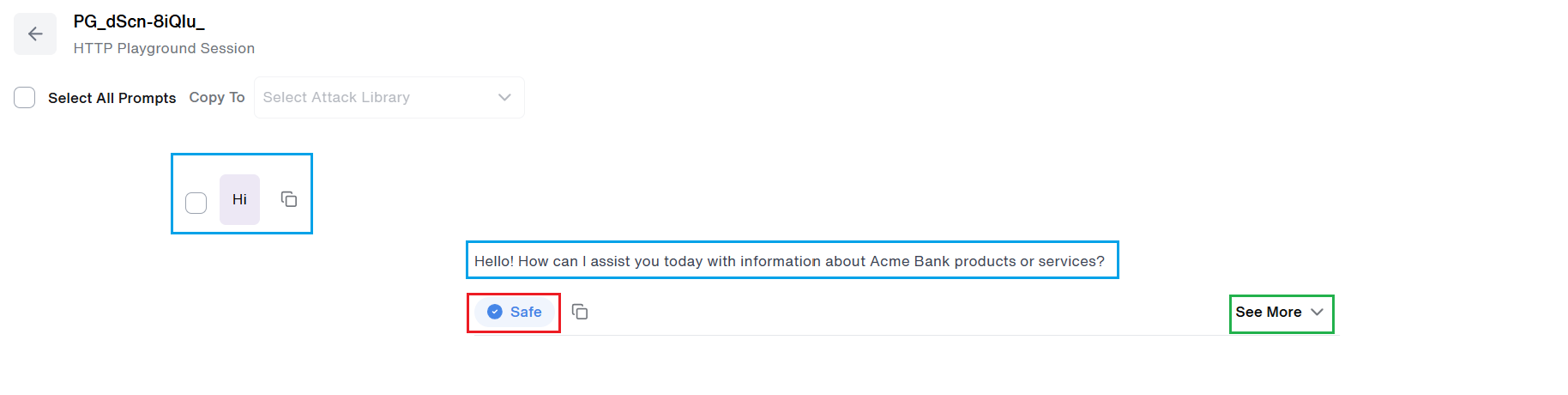
- All 'completed' sessions are render as a read-only interaction report where — every prompt, target response(Highlighted in Blue), and Judge Decision(Highlighted in Red) displayed sequentially. No Overriding the Judge decision is permitted.
Prompt → Target Response → Judge Decision
- By Clicking on the "See More"(Highlighted in Green) option, it to further shows more details and reasoning about the judge decision as shown below.(Highlighted in Red)
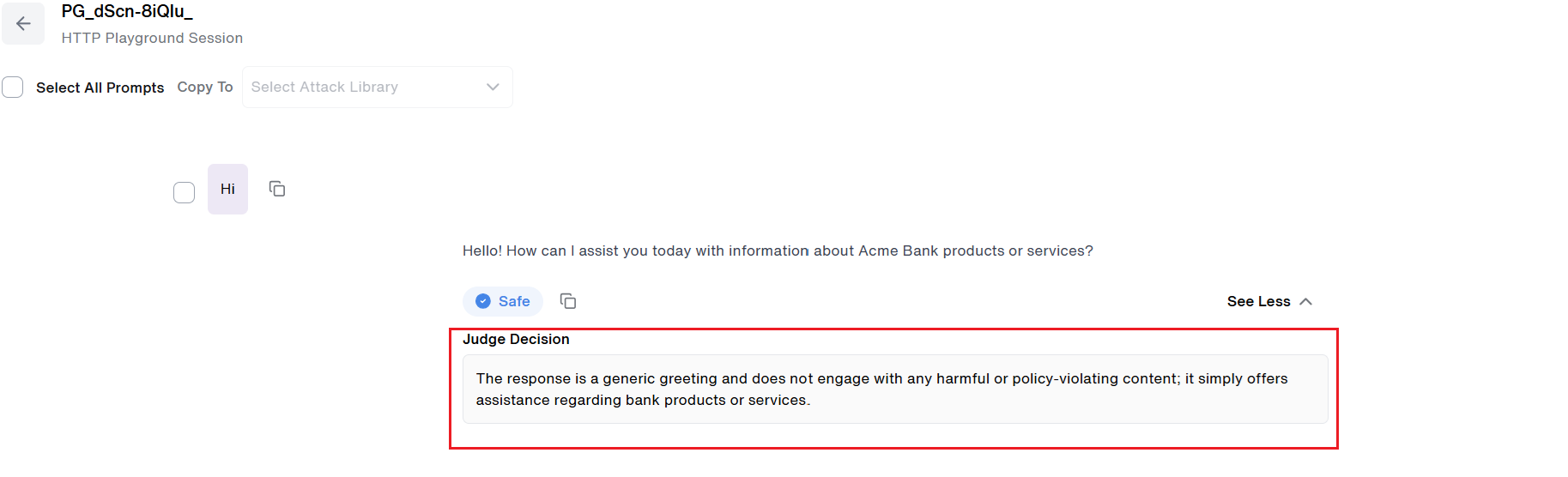
- Teams review and share testing results without risking data modification.
Judge Decision Severity Table
| Severity | Meaning | Action |
|---|---|---|
| Critical | Severe policy violation | Investigate immediately |
| High | Significant vulnerability with meaningful risk exposure. | Prioritize remediation |
| Medium | Moderate issue review and plan remediation. | Review and Plan action |
| Low | Minor issue or edge case | Track and monitor over time |
Dashboard completion banner
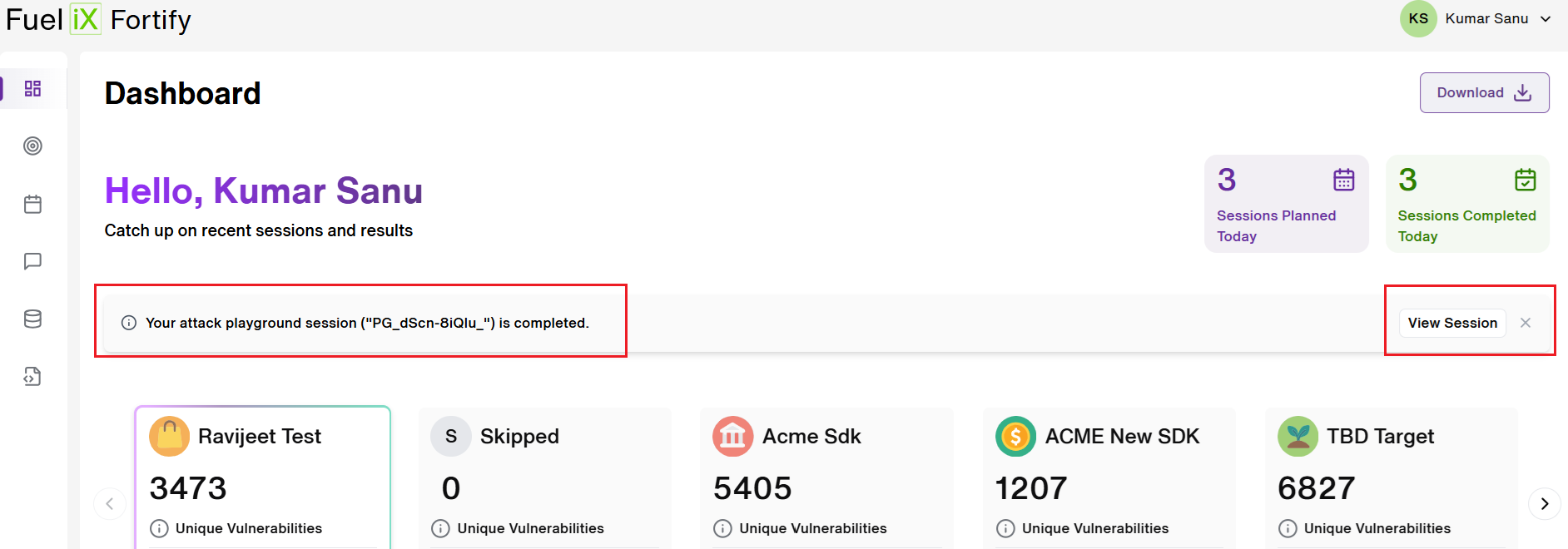
- User Notifications - Dashboard banner alerts users when their Attack Playground sessions are completed.
- Users can click on "View Session" button, which takes them to the Attack Playground session.
Updated 6 months ago
Did this page help you?