
Creating and Managing Skills (Admins)
Agent Trainer allows organizations to create and manage skills, an essential building block for scenarios as skills define how agents are evaluated and given feedback after completing a training session. Default Skills created by the Agent Trainer team come pre-loaded in your instance and can be managed just like any other skill.
Before rolling out a scenario to agents, it's highly recommended to test out the scenario to see how skills are graded, and make any necessary changes to the skill criteria in order to calibrate the skill to your organization's evaluation rubric.
Creating Skills
You can create new skills in the Advanced Settings page in the create scenario flow. Look for the "Add Skill" button in the bottom left of the page below the list of existing skills.
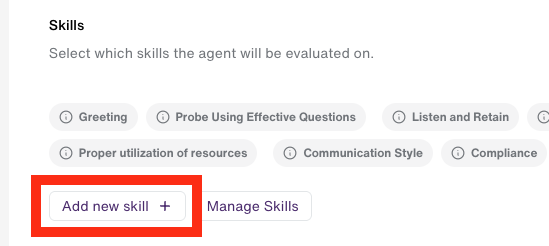
Clicking the “Add new Skill” will open the skill creation modal. With the following fields, all are must be filled in:
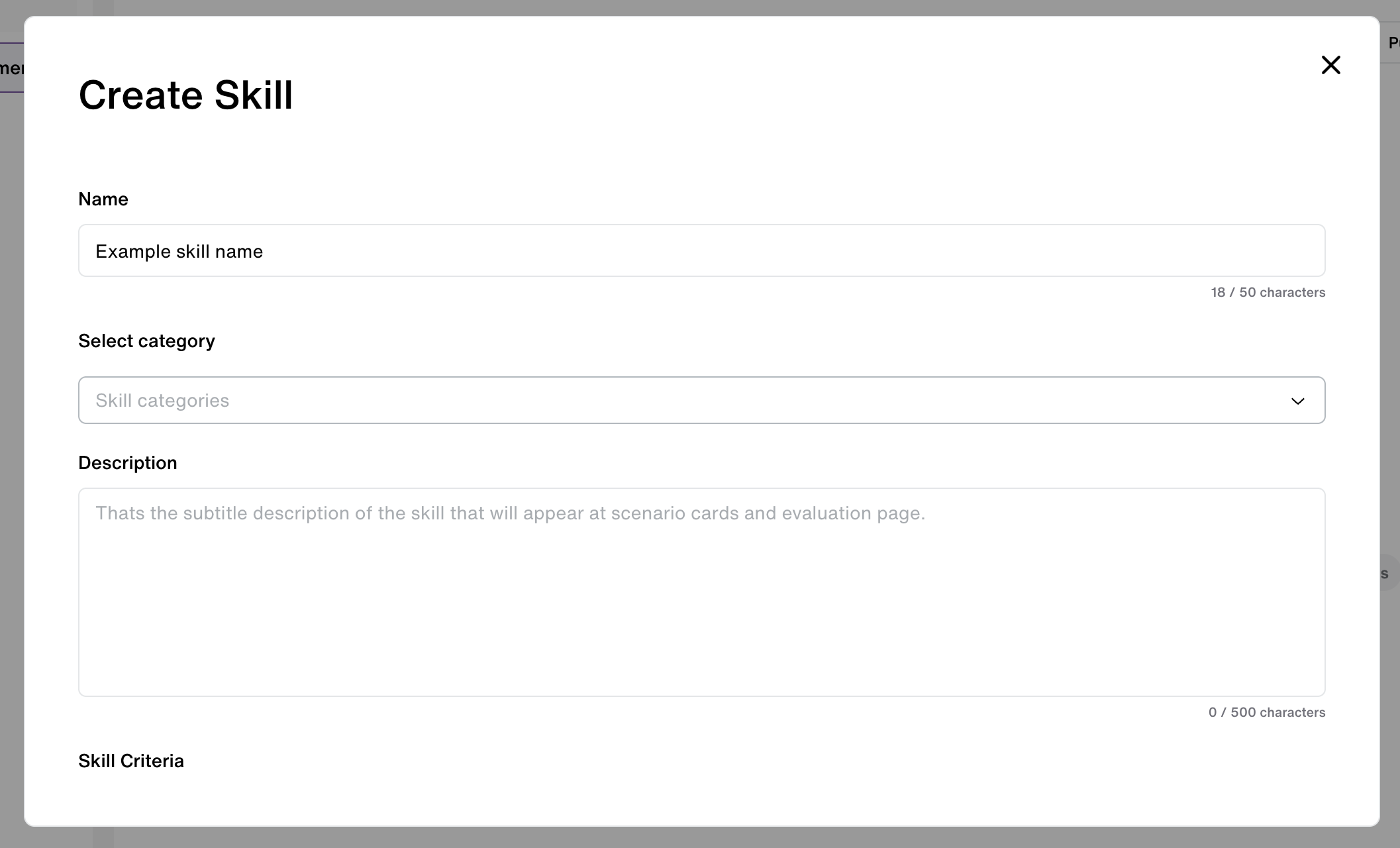
Name: This is the user-facing title of the skill. This name will appear on the scenario start page and evaluation page.
Select Category: Choose the category for the skill from a pre-set list. This defines the category that the skill will appear in in the evaluation page.
Description: This is the text that agents will see on the scenario start page, which helps them understand what skills they need to focus on.
Skill Criteria: The skill criteria is what defines how agents will be scored for that skill, and what kinds of feedback they'll get. Start out by describing what the skill is on a high level, then set clear instructions for how the skill should be evaluated in a numbered list. Score of 1: detail what kinds of behavior constitutes a score of 1. Score of 2: detail what kinds of behavior constitutes a score of 2, etc.
When finished click "Save". The new skill will appear on the advanced settings screen immediately.
Managing Skills
On the create scenario advanced settings page, click the “Manage skills” button. This will reveal the “Edit skill” and “Delete skill” buttons.
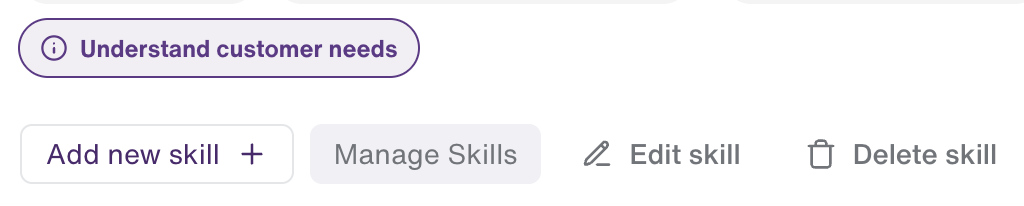
Edit
Select the skill you want to edit and click the “Edit skill” button. The skill creation modal will appear with existing data for the skill already filled into the input boxes. Make the necessary updates and click the save button to close the modal and save the updated values for the skill.
Deleting Skills
Select the skill you want to delete and click the “Delete skill” button. This will launch the delete confirmation modal. Clicking "Delete skill" will delete the skill. Note that if a skill is deleted but it was already used in a scenario that was completed by an agent, the session history of any scenarios already completed that use that skill will remain unchanged.
Updated 12 months ago