
Creating and Managing Scenarios (Admins)
Scenarios are essential to Agent Trainer, and the scenario creation feature allows admin users to craft scenarios tailored to the specific needs of their business.
Creating Scenarios
Click the "Scenario Management" button on navigation bar
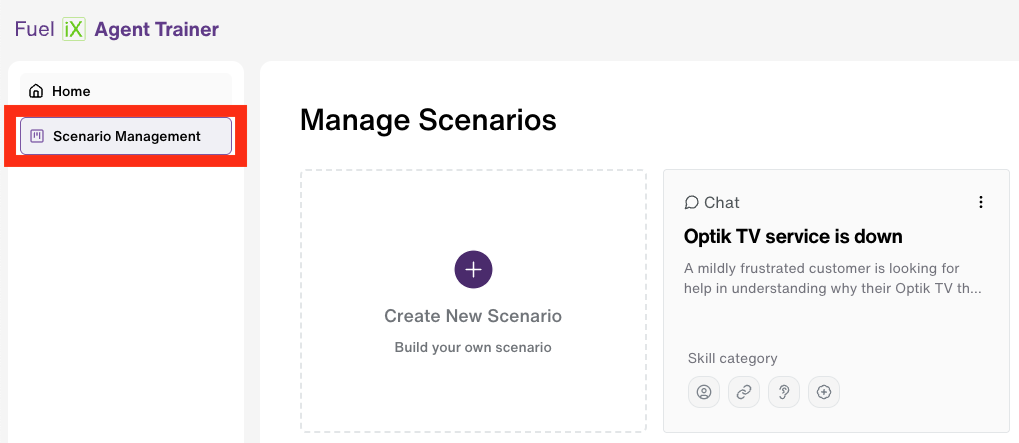
Next, select "Create New Scenario" in the top left to create a new scenario.
You'll be presented with a modal where you can choose to start from a template with pre-set values, or start from scratch. Click on any template to start from that template, or click "Create your own" to start from scratch.
Basic Settings
The basic settings is where you can set the name and description of the scenario that agents will see, as well as fill in the instructions for the AI that power the heart and soul of the scenario. Below is explanation of each field.
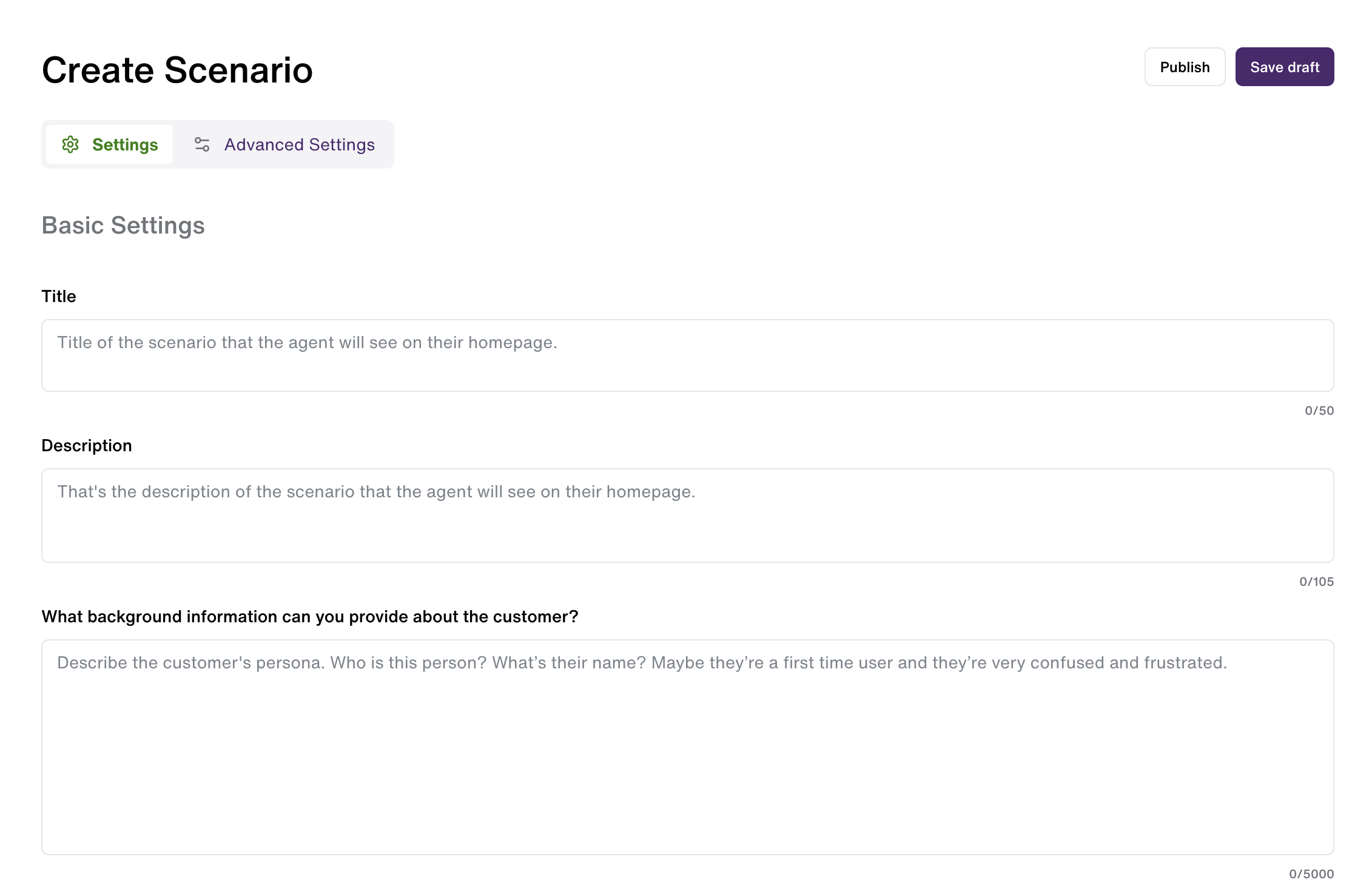
Title This is the title of the scenario that agents will see in the tiles on their homepage
Description This is the short explanation of what the scenario is that users will see on their homepage
What background information can you provide about the customer?
Here you can define the persona that will appear in the scenario. You can provide details such as their name, age, and any other details that might define how they act. For example, maybe someone is not very experienced using technology, or maybe they don't speak English as a first language and will have difficulty communicating. It's possible to create realistic representations of the varieties of people agents will encounter in the real world!
Can you describe the customer's current situation?
Use this section to describe what problem the customer is currently having. It could be anything from wanting to learn more about a service to wanting to return something to a nuanced technical problem. Feel free to keep it simple or add detail as needed.
What kind of behavior can we expect from this customer?
In this section, describe what kinds of behavior the customer will exhibit. Maybe they are extremely angry, but can be won over with a certain behavior or action the agent can take. Note that this section may have some overlap with the "What background information can you provide about the customer?" and that's ok.
What steps should the agent follow to successfully resolve this situation?
Here you can describe what steps an agent must take to successfully complete a scenario. It's possible that there are multiple outcomes or just one, either works. Try to be as specific as possible, and consider using a numbered list to make it extra clear what steps the agent must take to finish the scenario.
Advanced Settings
When ready, switch to the Advanced Settings tab at the top of the create scenario page to complete your scenario.
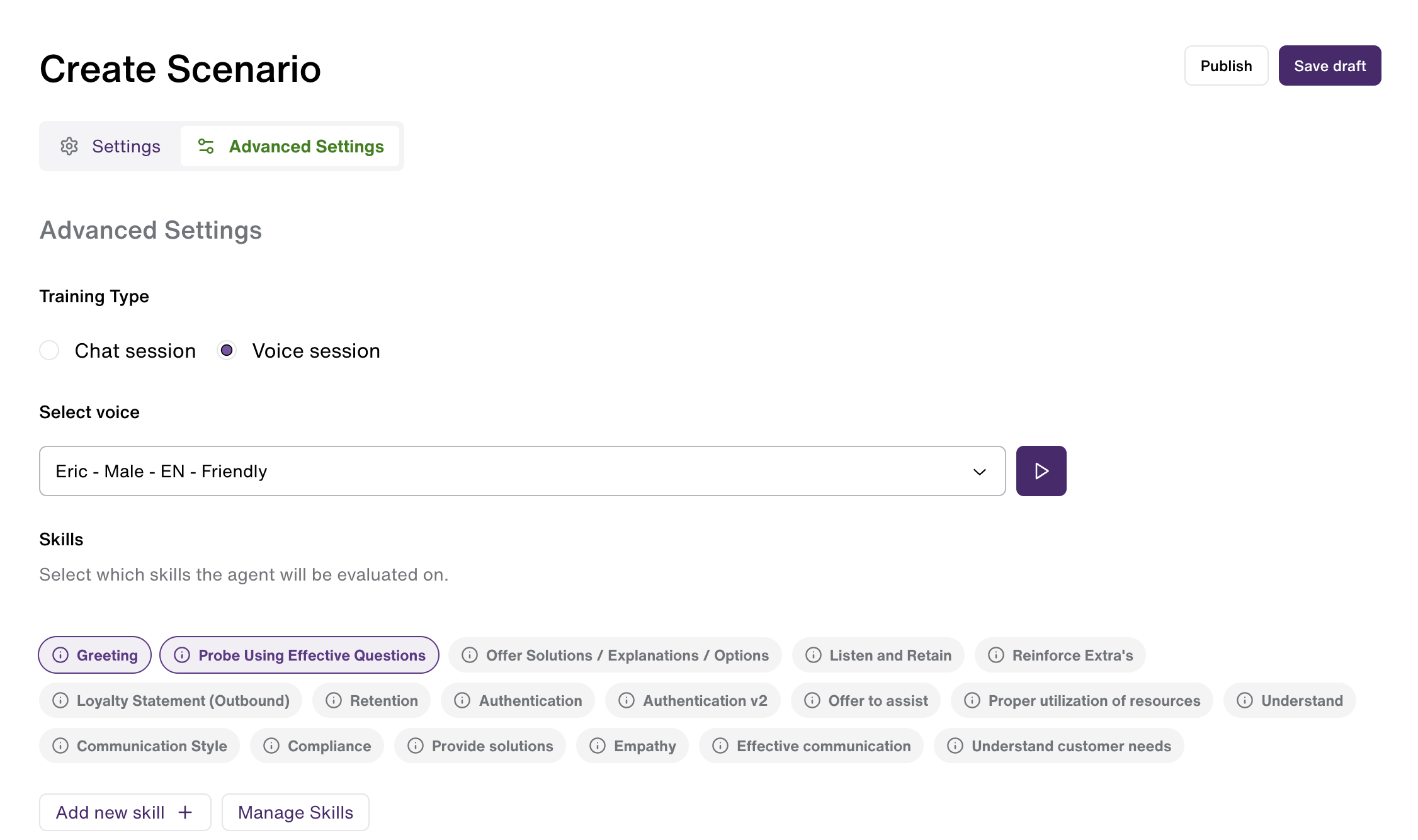
Training Type
You may choose between a Chat Session or Voice session. Chat sessions mimic a real-time chat session with a customer, while voice sessions simulate a phone call.
If Voice session is selected, you may also choose the customer's voice that will be used in the session. Click the preview button next to the select voice dropdown to hear what the voice will sound like.
Skills
Finally, you'll need to select at least one skill in order to complete a session. There is a limit of 5 skills that can be added to a scenario.
Be sure to select skills that are relevant to the training purpose of the scenario. Skills define the evaluation that agents will see after completing a training session for this scenario, and will influence the scores and coaching feedback that the agents view.
For more information on creating and managing skills see https://docs.fuelix.ai/docs/creating-and-managing-skills-admins
Published vs Draft
Scenarios have two statuses, Draft and Published.
Draft draft scenarios can't be assigned to agents but can be edited. Use draft scenarios to work on scenarios and make sure they're functioning as intended before rolling them out to agents. Draft scenarios can be previewed to better understand how they will appear to agents. Published scenarios can't be edited, so make sure scenarios are working as intended before publishing
Published published scenarios can be assigned to agents, and can no longer be edited.
Managing Scenarios
After creating a scenario there are various options to manage scenarios. All of these options can be accessed by clicking the three vertical dot "action menu" in a scenario tile on the Scenario Management page.
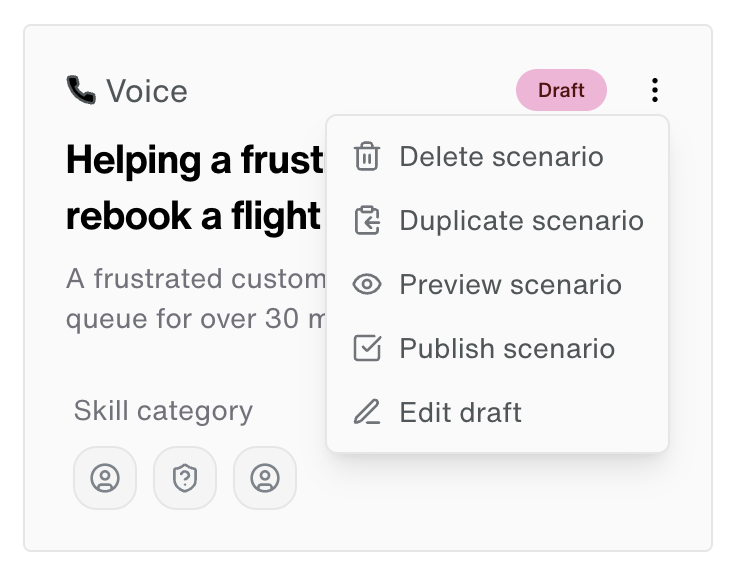
Edit (draft only) Scenarios in a draft state can be edited, clicking this option will bring you to the scenario edit screen.
Publish (draft only) Scenarios in a draft state can be changed to publish. This will set the scenario status to publish and assign it to all agents in the system. Once a scenario is published it can no longer be edited.
Preview Preview allows you to go through a sample training session just like an agent would so you can check if the scenario is operating as intended. Note that evaluations from preview training sessions will not be saved.
Duplicate The duplicate option allows you to create a copy of the scenario in case you want to use an existing scenario as a starting point for a new scenario.
Delete The delete option allows you to remove a scenario from Agent Trainer. Deleting a scenario will remove all existing assignments to agents. In other words, the scenario will disappear from the Agent home page and they will no longer be able to start new training sessions from that scenario. However, any already existing training sessions will remain and can be viewed by agents in their session history or viewed by managers/admins in the manager home page.
Updated 12 months ago