
Admin Pages: Org Management
The Edit Organization page allows Admins to configure organization-wide settings that affect how users interact with Fuel iX products. These settings establish defaults for new users and control feature availability across the organization.
Overview
The Organization Settings page provides administrators with comprehensive control over how Fuel iX Copilots operates within your organization. These settings affect all users and establish the default experience for new team members.
Access Requirements
- Required Role: Organization Administrator
- Location: Settings > Edit Organization
- Impact Scope: Organization-wide
Important Notes
- Changes take effect immediately upon saving
- Most changes apply to new users automatically
- Existing users may retain their previous settings for certain configurations
- No system restart or user logout is required for changes to take effect
Organization Identity
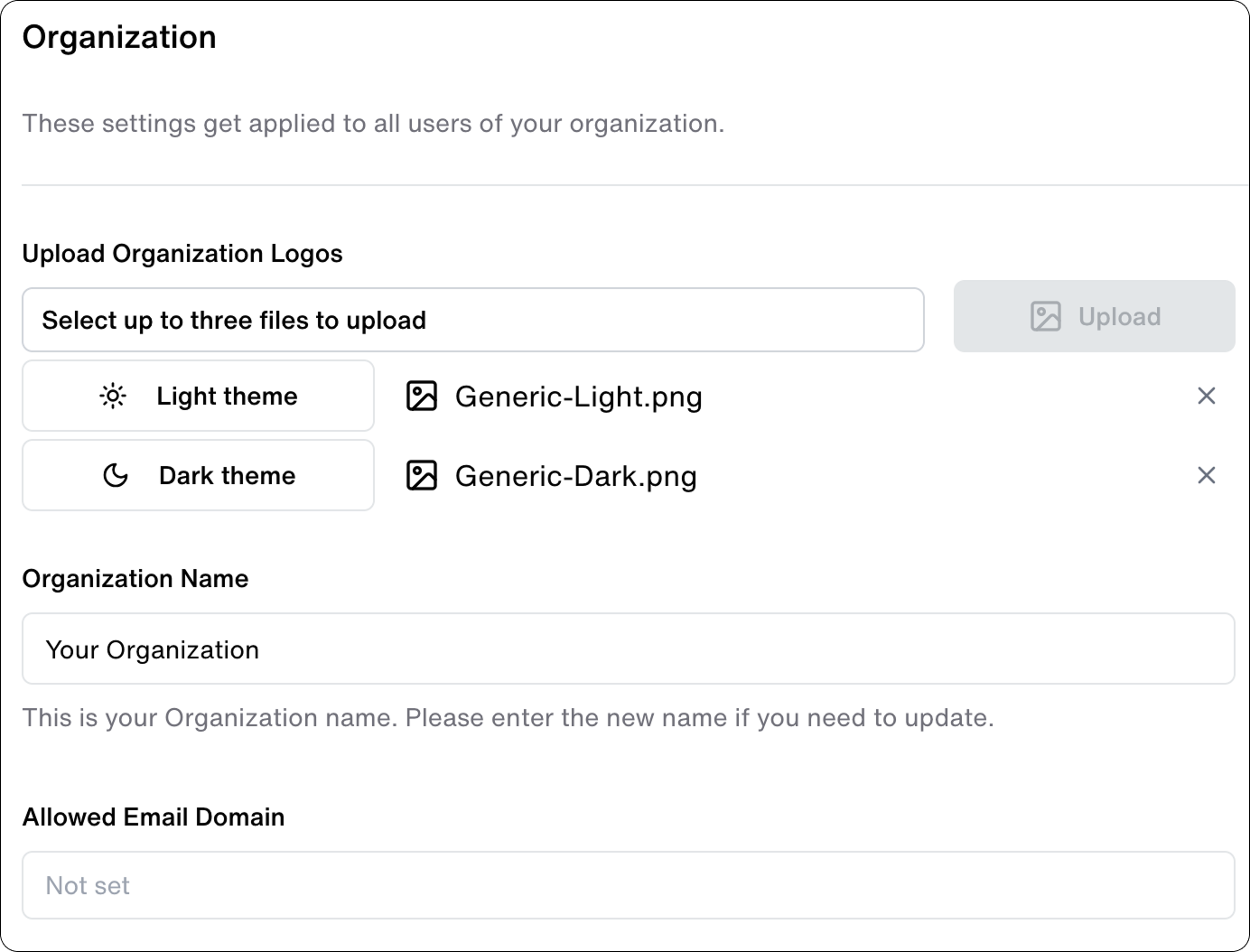
Organization Name
Your organization name appears throughout the Fuel iX Copilots interface, including:
- Application header
- User profiles
- System-generated communications
- Analytics reports
To update your organization name:
- Enter the new name in the "Organization Name" field
- Click "Update Settings" to save changes
Logo Management
Customize your organization's branding with logo uploads for different theme contexts.
Logo Requirements
- Supported Formats: JPG, PNG, or GIF
- Recommended Size: 500x300px (rectangular)
- File Size: Maximum 5MB
Theme Options
You can upload separate logos for different themes:
- Dark theme logo
- Light theme logo
- Default logo (automatically adapts to both themes)
If no custom logo is uploaded, the default Fuel iX logo will be displayed.
Logo Upload Steps
- Click "Select" under the appropriate theme option
- Choose your logo file from your local system
- Preview the logo in the interface
- Click "Update Settings" to save changes
Domain Management
Control user access through email domain restrictions.
Allowed Email Domains
- Enter one or more email domains to control who can access your organization
- Multiple domains should be separated by commas
- Examples: company.com, subsidiary.company.com
Important Note on Allowed Domains
- Leave the domain field blank if you want to restrict access to manually created users only
- Ensure domains align with your SSO configuration if using single sign-on
- Changes to allowed domains do not affect existing users
Resource Management
The following settings are reserved for future functionality and currently do not affect system behavior:
- Budget allocation
- User limit
- Token per minute limit
- Request per minute limit
AI Model Access
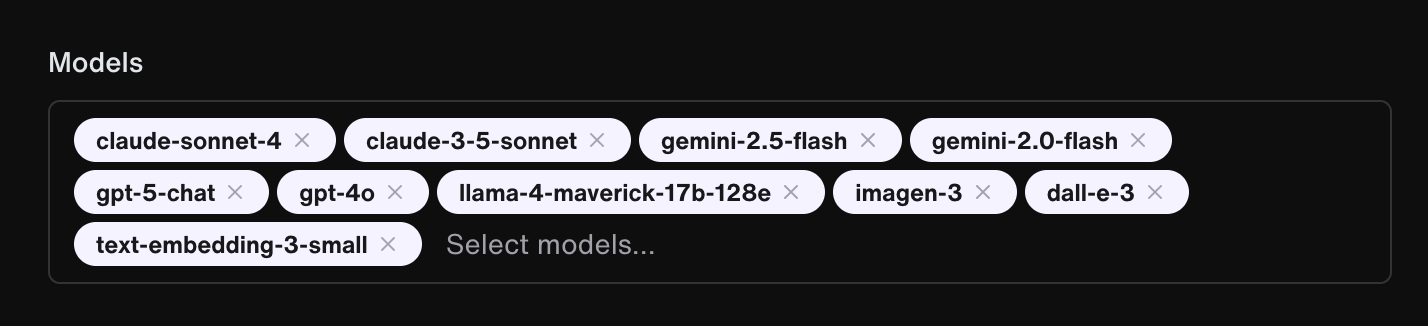
For full functionality in Fuel iX Copilots, users must have access to the following models:
| Language Models | Image Generation Models | Embedding Models |
|---|---|---|
claude-sonnet-4 | imagen-3 | text-embedding-3-small |
claude-3-5-sonnet | dall-e-3 | |
gemini-2.5-flash | ||
gemini-2.0-flash | ||
gpt-5-chat | ||
gpt-4o | ||
llama-4-maverick-17b-128e |
Overview
The Models section allows administrators to control which AI models are available to users within your organization. This configuration determines the foundation of AI capabilities available across all Fuel iX Copilot features.
Model Configuration
- Models are grouped by provider (e.g., Google, Anthropic, OpenAI)
- Each model can be individually enabled or disabled
- Changes affect new users automatically
- Existing users retain their current model access until manually updated
Model availability may affect the functionality of certain copilots that depend on specific models. Ensure critical copilots have their required models enabled.
Access Control Rules
- New users inherit model settings at account creation
- Changes to model access do not automatically affect existing users
- Administrators always have access to test disabled models
- Model access can be updated at any time without service interruption
Feature Management
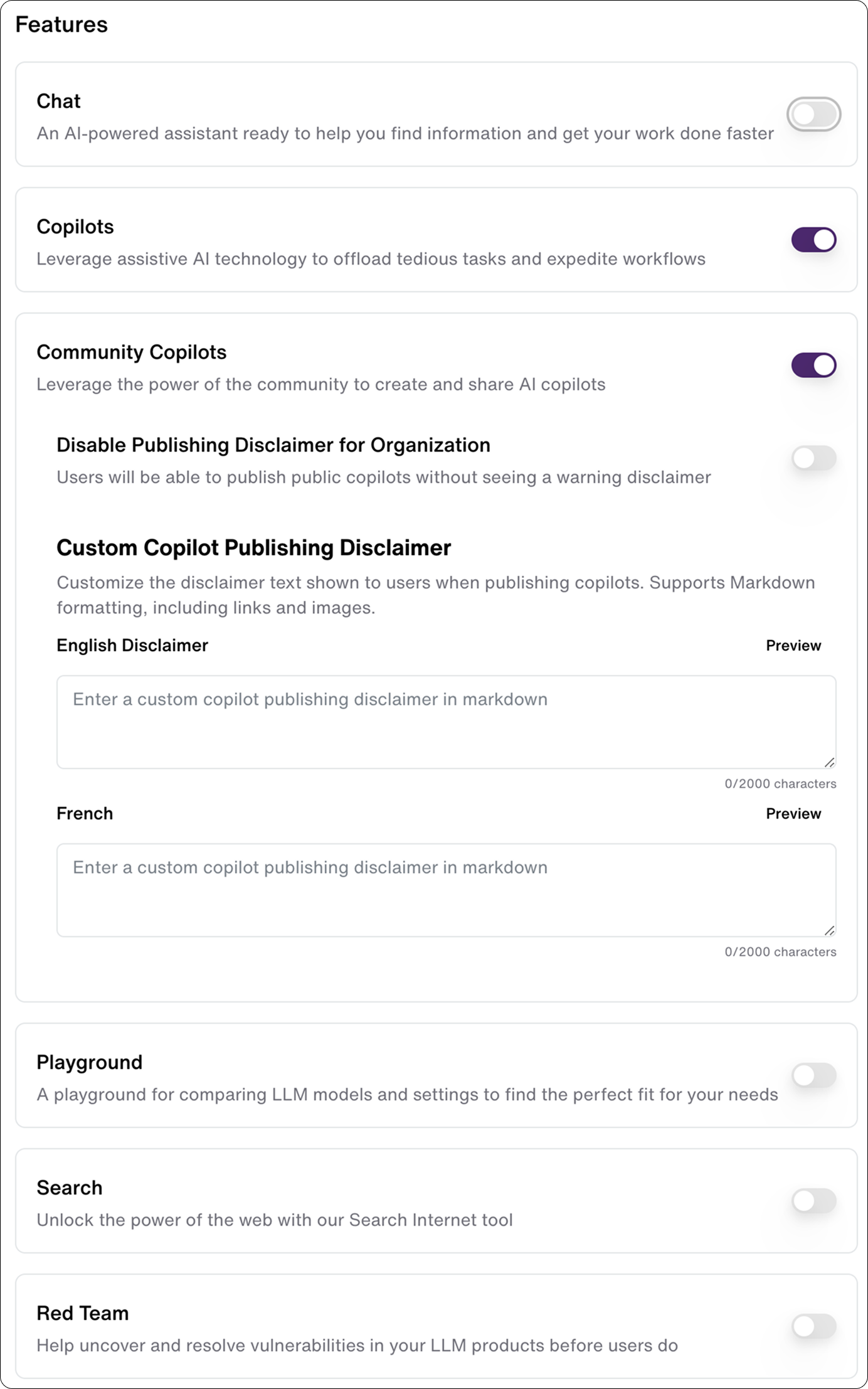
Core Features Overview
Control access to key Fuel iX Copilot capabilities through feature toggles.
Chat
- AI-powered chat interface for direct model interaction
- Admin Access: Always enabled
- Viewer Access: Configurable via toggle
- Enables users to interact directly with enabled AI models
Copilots
- Core Fuel iX Copilot experience
- Admin Access: Always enabled
- Viewer Access: Configurable via toggle
- Provides access to official and custom copilots
Community Copilots
- Platform for sharing and discovering copilots across your organization
- Admin Access: Always enabled
- Viewer Access: Configurable via toggle
- Includes custom publishing disclaimer controls
Custom Copilot Publishing Disclaimer
Control how users share copilots within your organization's community:
- Toggle the "Custom Copilot Publishing Disclaimer for Organization" switch to enable/disable the feature
- When enabled, users will see your custom disclaimer before publishing copilots
- Customize the disclaimer text in both English and French using the provided fields
- Use the preview function to verify your message formatting
Use the disclaimer to:
- Set guidelines for copilot sharing
- Remind users about content policies
- Establish quality standards
- Protect sensitive information
Search
- Enhanced search capabilities across the platform
- Admin Access: Always enabled
- Viewer Access: Configurable via toggle
- Enables users to find relevant information and copilots
Playground
- Advanced model testing and comparison interface
- Admin Access: Always enabled
- Viewer Access: Configurable via toggle
- Allows direct model comparison and parameter adjustment
Red Team
- Access to Fuel Fortify application
- Admin Access: Always enabled
- Viewer Access: Configurable via toggle
- Enables security and robustness testing
Permission Management
Feature access is managed through two primary user roles:
Administrators
- Have full access to all features
- Cannot have core features disabled
- Can manage other users' access
Viewers
- Access determined by feature toggles
- Changes take effect immediately
- Can be restricted from specific features
Best Practices for Feature Management
-
Regular Review
- Periodically review feature access settings
- Align permissions with organizational policies
- Update based on user feedback and needs
-
Change Management
- Communicate feature changes to users
- Consider impact on existing workflows
- Plan for user training when enabling new features
-
Security Considerations
- Restrict sensitive features appropriately
- Monitor feature usage patterns
- Regular audit of access controls
Feature toggles affect the visibility of features in the user interface. Users without access to a feature will not see it in their navigation or workspace.
Content Management
Welcome Messages
Customize the first impression users have when accessing Fuel iX Copilots.
Configuration Requirements
- Messages must be provided in both English and French
- Markdown formatting is supported for rich text presentation
- Character limit: 5,000 per language
- Preview functionality available for both languages
Setting Up Welcome Messages
- Locate the "Welcome Message" section
- Enter your message in the English field
- Enter the corresponding French translation
- Use the "Preview" button to verify formatting
- Click "Update Settings" to save changes
Markdown Formatting Tips
# Main Title
## Subtitle
- Bullet points for key information
**Bold text** for emphasis
[Link text](URL) for hyperlinks
Keep welcome messages concise, informative, and aligned with your organization's voice and tone.
Community Announcements
Configure organization-wide announcements for the Community Copilots section.
Announcement Configuration
- Appears at the top of the Community Copilots page
- Requires both English and French versions
- Supports Markdown formatting
- Optional: Can be left blank for no announcement
Recommended Uses
- Share community guidelines
- Highlight featured copilots
- Announce new features or changes
- Provide usage tips and best practices
Setting Up Announcements
- Navigate to the "Community Copilots" section
- Enter announcement text in both language fields
- Use the preview function to check formatting
- Save changes using "Update Settings"
Default User Experience
Landing Page Configuration
Set the default interface users see when accessing Fuel iX Copilots.
Available Options
- Chat interface
- Copilots interface
Configuration Steps
- Locate the "Default Landing Page" dropdown
- Select your preferred default interface
- Save changes to apply organization-wide
Individual users may navigate to other interfaces after landing on the default page.
Initial User Settings
Understanding how new users inherit organization settings:
Automatic Inheritances
- Model access permissions
- Feature availability
- Interface defaults
- Organization branding
User-Specific Settings
- Personal preferences
- Custom copilot access
- Conversation history
- Individual model preferences
Best Practices
Configuration Guidelines
Organization Setup
-
Complete All Language Requirements
- Ensure both English and French content is provided
- Maintain consistent messaging across languages
- Regular review of bilingual content
-
Branding Consistency
- Upload logos for all theme contexts
- Maintain consistent organization naming
- Regular review of visual elements
-
Feature Management
- Start with essential features enabled
- Gradually introduce advanced features
- Monitor feature usage patterns
Security and Access
-
Domain Management
- Regular review of allowed domains
- Coordinate with IT for domain changes
- Consider security implications
-
Model Access
- Review model access quarterly
- Align with security policies
- Document model access changes
-
User Management
- Regular audit of user access
- Clear process for access requests
- Documentation of permission changes
Optimization Recommendations
-
Performance
- Regular review of system usage
- Monitor user feedback
- Optimize based on analytics
-
User Experience
- Clear welcome messages
- Intuitive default settings
- Regular user feedback collection
-
Content Management
- Regular update of announcements
- Clear community guidelines
- Consistent communication style
Troubleshooting
Common Issues and Solutions
| Problem | Solutions |
|---|---|
| Logos not appearing correctly |
|
| Users cannot access the system |
|
| Features not visible to users |
|
| Formatting issues in messages |
|
Getting Help
Support Resources
- Contact Fuel iX support team
- Review documentation
- Check system status page
- Submit feature requests
Best Practices for Support
- Document the issue clearly
- Include screenshots when possible
- Note any recent changes
- List troubleshooting steps tried
For urgent issues affecting multiple users, contact Fuel iX support immediately at [email protected]
Updated 11 months ago