
Assigning Scenarios
The Scenario Assignment feature allows Admin and Manager users to control which Agents in the organization have access to specific training scenarios. This ensures that agents only see scenarios relevant to their role and current training needs.
Creating New Scenarios
- When a Manager/Admin creates a new scenario, it will not be assigned to anyone by default.
- After creating a scenario, Managers/Admins will need to manually assign it to agents.
- They can choose to assign it to everyone in the organization, or
- Select specific agents individually.
⚠️ Important:
Only published scenarios can be assigned. Draft scenarios cannot be assigned.
Accessing Scenario Assignment
To assign or unassign scenarios:
-
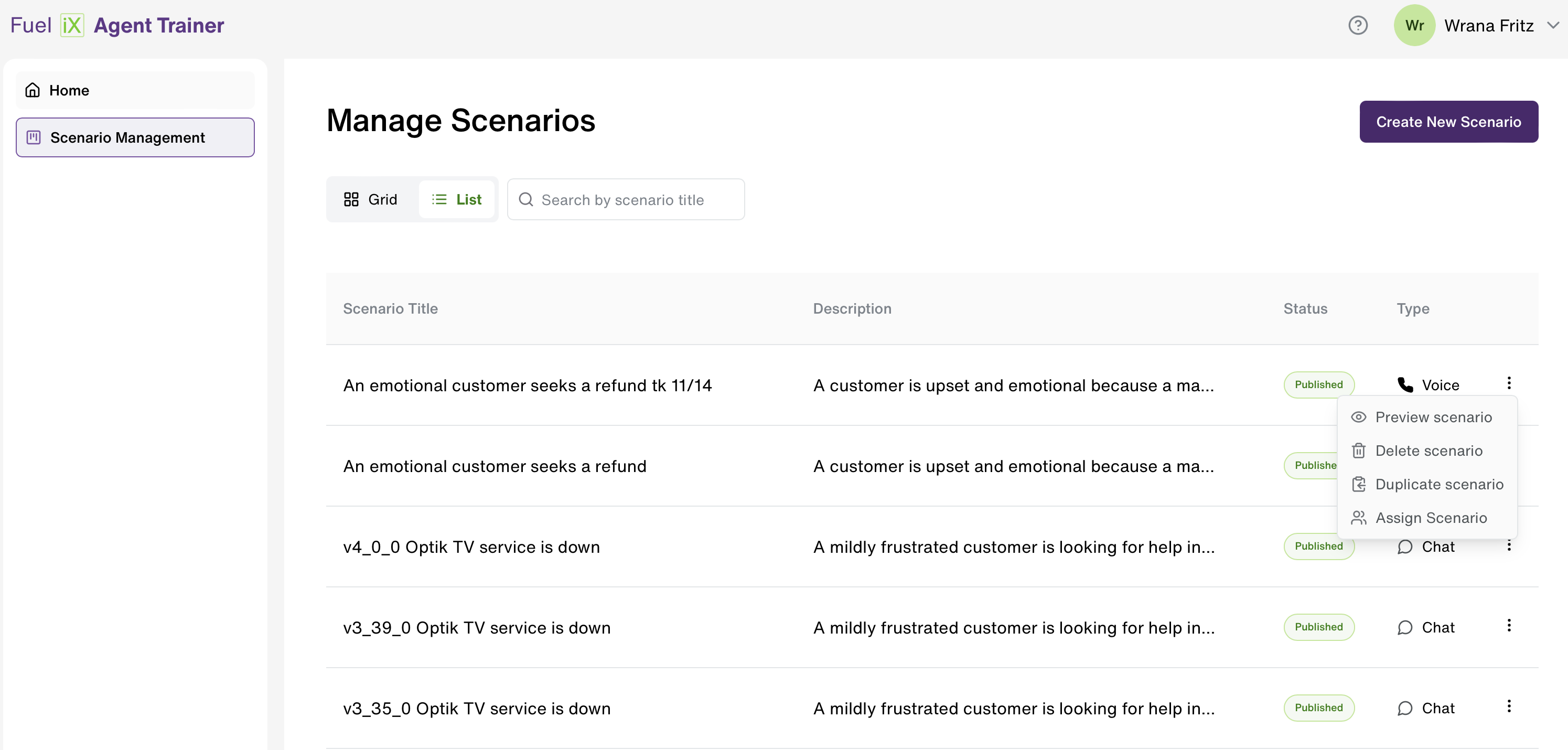
Go to Scenario Management.
-
Next to the desired scenario, click the three-dot menu (⋮).
-
Select “Assign Scenario”.
-
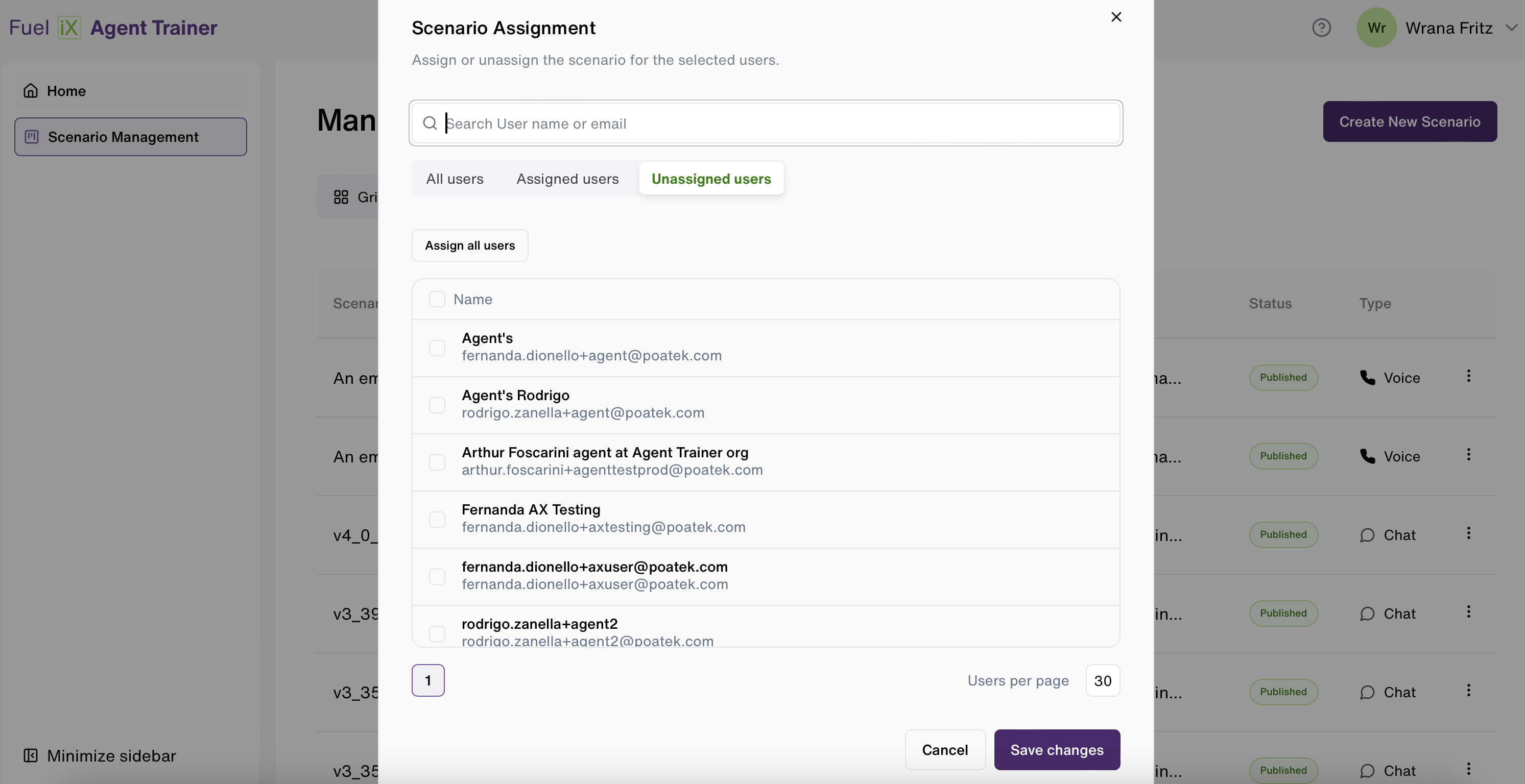
A modal will open displaying the list of users in the organization.
Understanding the Modal Tabs
The modal contains three filter tabs:
-
All Users: Displays all agents in the organization — both assigned and unassigned.
-
Assigned Users: Shows agents who already have this scenario assigned.
-
Unassigned Users: Lists agents who do not yet have this scenario and are available to be assigned.
- This is the default tab when you open the modal.
Assigning Scenarios
-
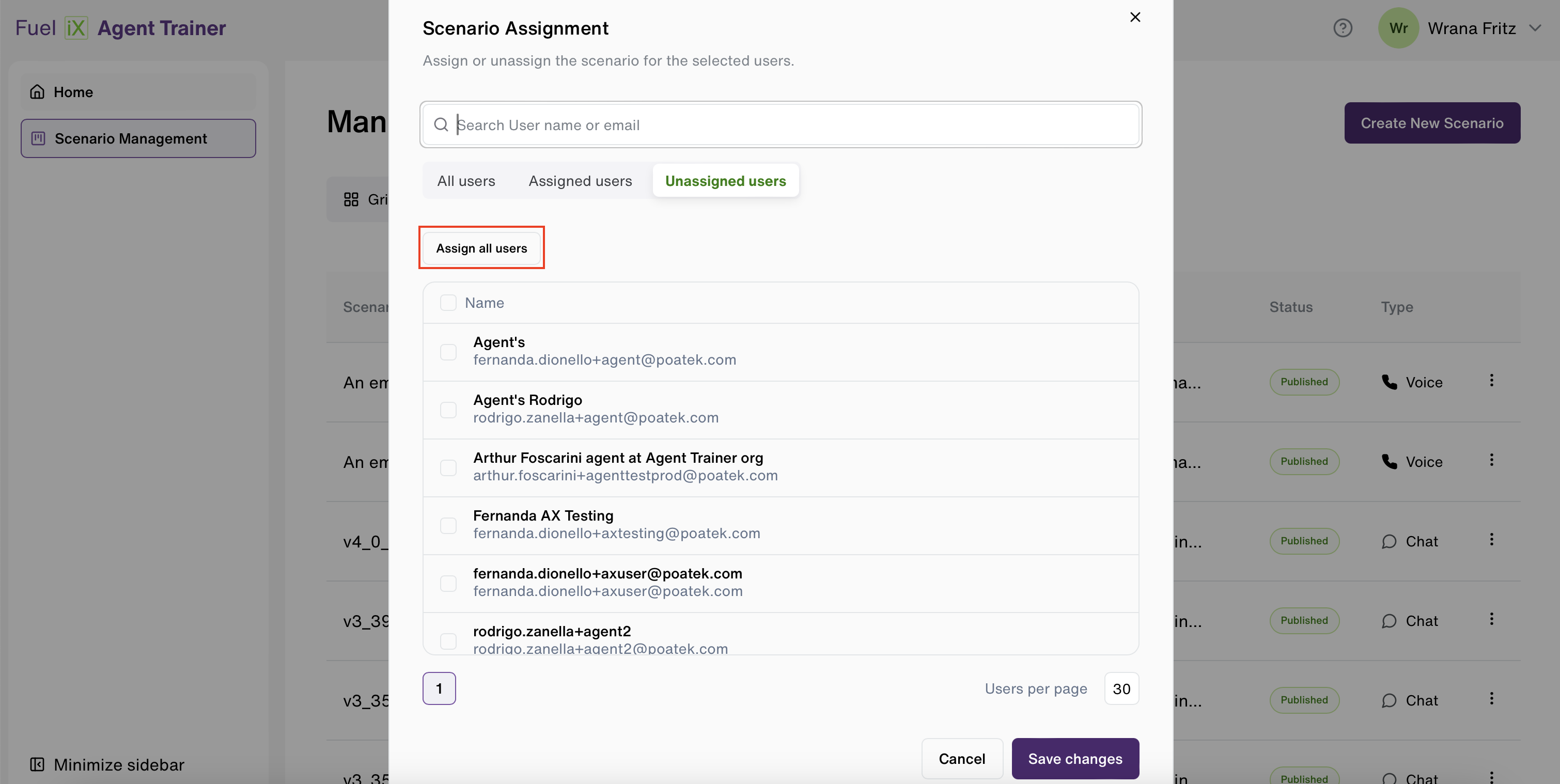
Check the box next to the agent’s name to assign the scenario.
-
To assign it to everyone, click “Assign all users.”
-
Click “Save” to apply changes.
-
Once saved:
- Selected agents will see the scenario on their homepage.
- They can immediately start a training session.
Additional features:
- Use the search box to quickly find agents.
- Multiple agents can be selected at once.
- A counter at the top shows how many agents are currently selected.
- To clear all selections, click the “X” next to the counter.
Unassigning Scenarios
To remove scenario assignments:
-
Open the “Assign Scenario” modal again.
-
Go to the Assigned Users tab.
-
Choose one of the following:
- Click “Unassign all users” to remove everyone, or
- Select individual users via the checkboxes.
-
Click “Save” to confirm.
After saving:
- Unassigned agents will no longer see this scenario on their homepage.
Agent Perspective
- Agents will only see scenarios that are assigned to them.
- If an agent is unassigned from a scenario:
- Their completed sessions remain visible in Session History.
- However, they will no longer be able to retake that scenario unless reassigned by an Admin.
Updated 11 months ago