
AI Guidelines for Scenario Creation
The AI Guidelines for Scenario Creation feature allows Admin users to validate and improve scenario inputs directly within the Basic Settings tabs. This ensures prompts are high-quality, consistent, and aligned with best practices, making it easier to create well-structured scenarios and reduce errors before publishing.
Accessing AI Guidelines
- Go to the Scenario Management page.
- Create a new scenario (using a template or from scratch) OR duplicate an existing scenario.
- Complete all required fields in the Basic Settings page .
- Click Save and Review.
- Once clicked, the system automatically runs the AI Guidelines validation.
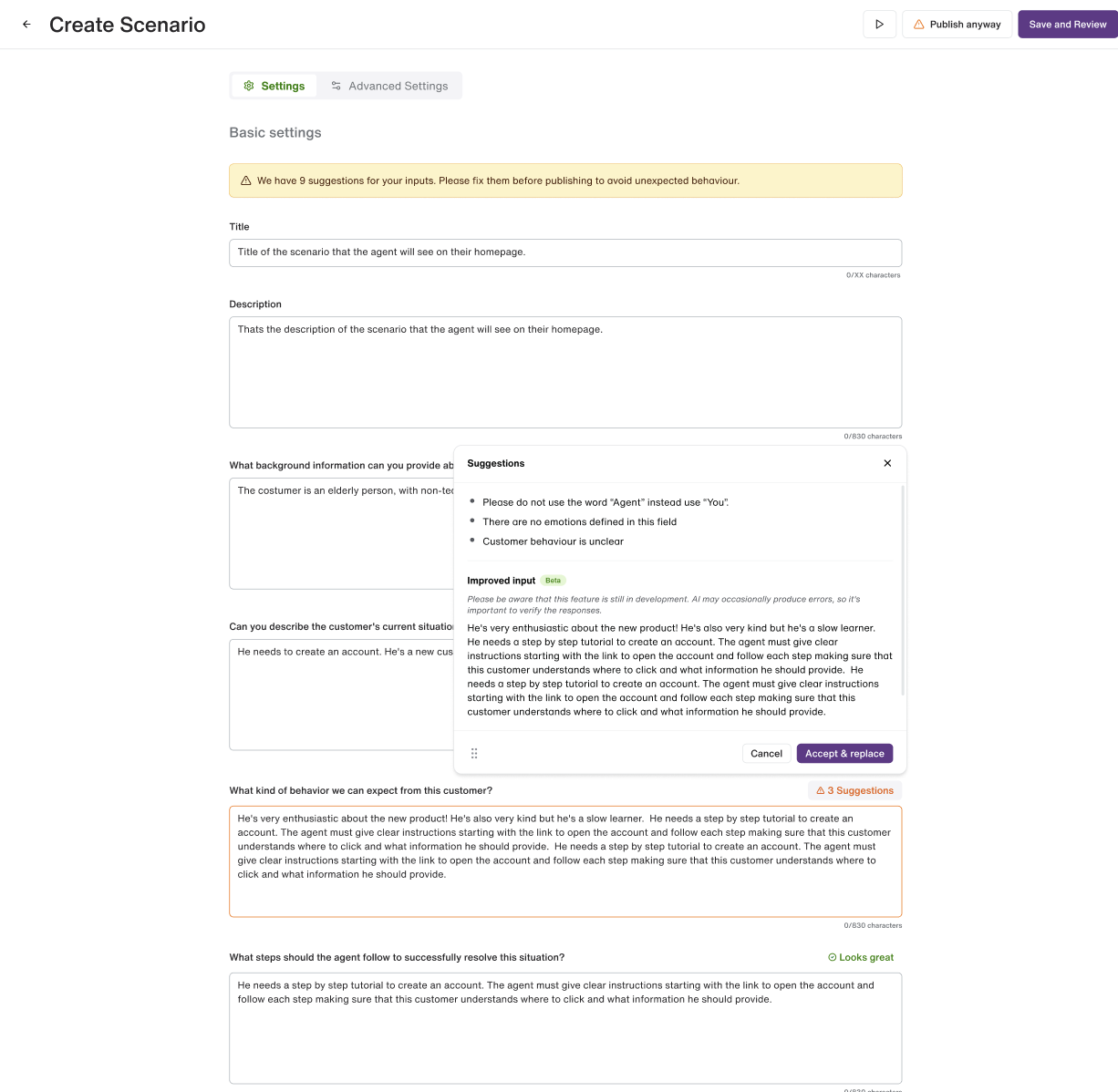
During the AI check:
- All fields are temporarily disabled.
- Suggestions will be returned for each field, along with optional improved text.
Field Feedback
After the AI check:
- Each field will display a status indicator in the top-right corner:
- ✅ Looks Good
- The field complies with AI best-practice guidelines. No changes are suggested.
- ❌ Error
- Indicates guideline violations. Click to open a detailed feedback modal.
- ✅ Looks Good
Inside the Feedback Modal
Each field modal contains:
- Suggestions
- A bullet-point list outlining:
- Guideline violations
- Improvement recommendations
- A bullet-point list outlining:
- Improved Input (Beta)
- AI-suggested rewritten text for the field
- Accept & Replace button:
- Instantly applies the suggested text
- Automatically closes the modal
- No copy and paste required
When ready to publish:
- If all fields are valid → Publish button is enabled.
- If any field contains suggestions → The button changes to Publish Anyway (with alert icon).
If suggestions exist, a banner appears below Basic Settings:
“We have X suggestions for your inputs. Please fix them before publishing to avoid unexpected behavior.”
⚠️ Important: Clicking Publish anyway opens a confirmation modal before publishing.
Updated 7 months ago
Did this page help you?