
User Groups
New feature that lets Admins organize agents into named groups, assign scenarios to a whole group at once, and filter Team Performance data by group.
Overview
Previously, Admins had to select agents one by one every time they assigned a scenario or reviewed team performance. User Groups lets Admins save a recurring set of agents (e.g., "New Hires Q3" or "Team Norte") and reuse it.
The update includes:
- A new Group Management page to create, edit, and delete groups
- Group assignment in the scenario assignment flow, so every member of a group receives the scenario
- A Groups filter on the Team Performance tab of the Report Dashboard, alongside the existing option to select individual agents
How It Works
The user logs in with an Admin account and opens Group Management in the sidebar.
The page lists each group with its Group name, Description, Members, and Scenarios Assigned. The user can search groups by name or description.
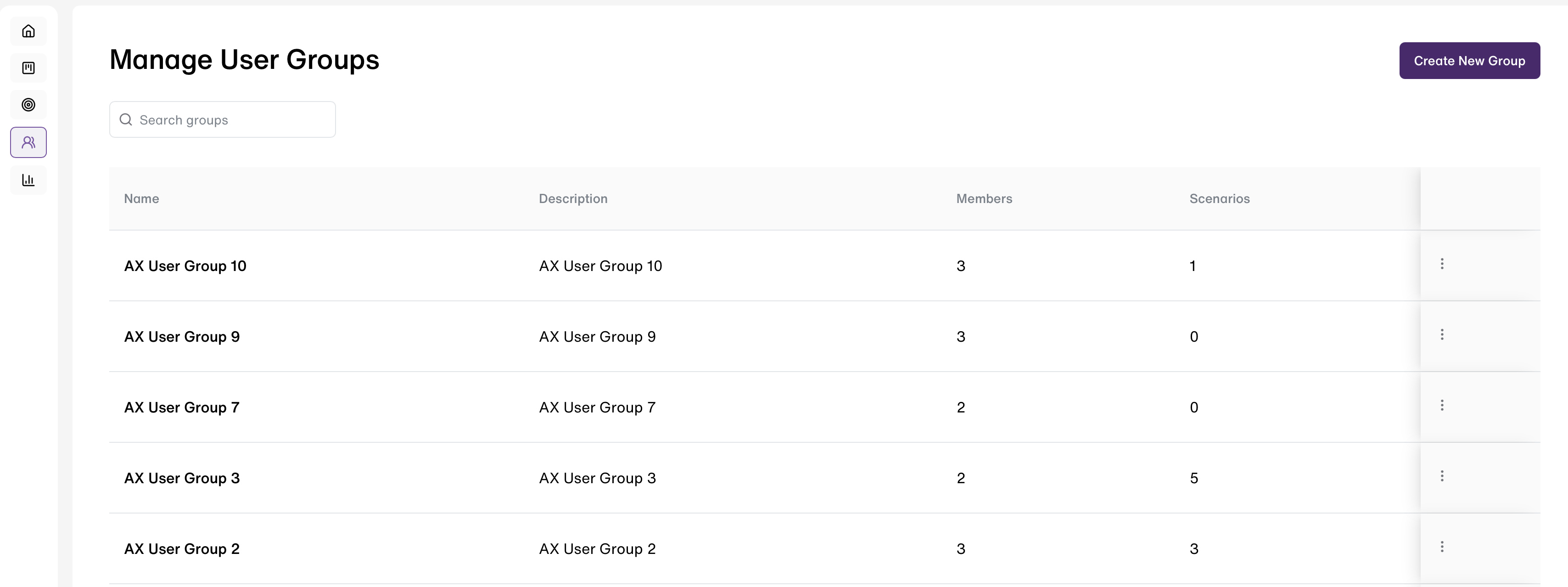
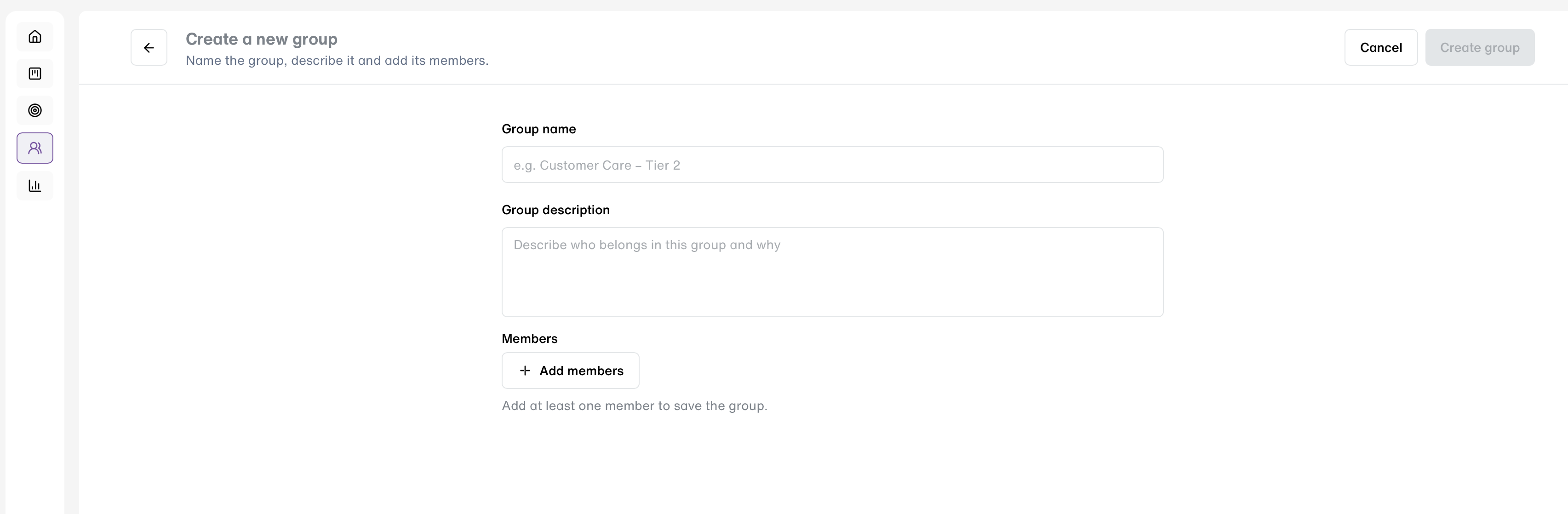
To create a group, the user clicks Create New Group, enters a name (3 to 50 characters) and an optional description (up to 500 characters), clicks Add members to pick agents, and clicks Create group.
Rules:
- A group needs at least one member.
- Group names must be unique in the organization.
- An organization can have up to 20 groups.
- An agent can belong to more than one group.
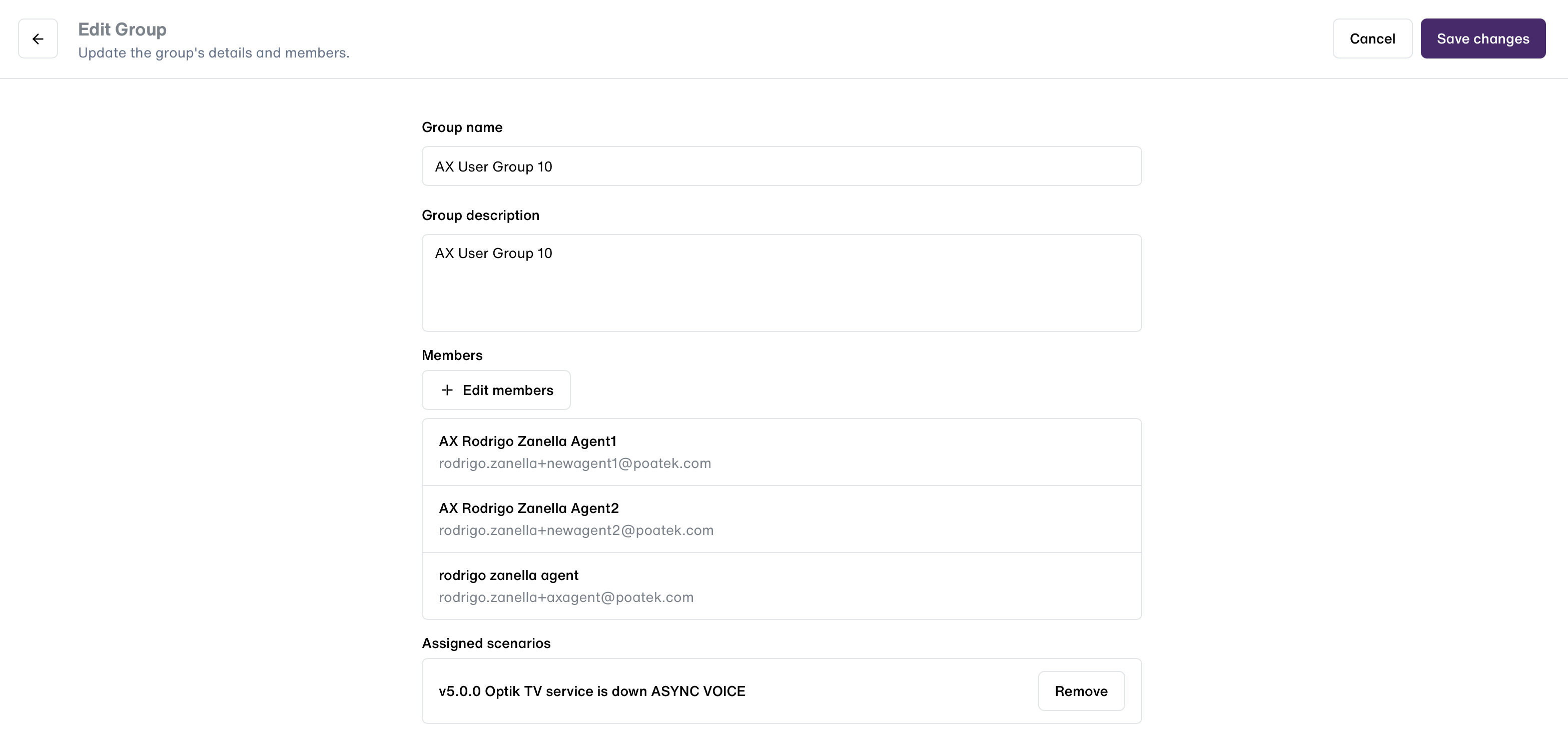
To change a group, the user opens Edit from the row's actions menu, updates the name, description, or members, and clicks Save changes. The page also shows which scenarios are assigned to it.
If removing members would make them lose scenarios they only have through this group, a dialog asks the user to either Remove assignments or Keep as individual. The choice applies to all removed members.
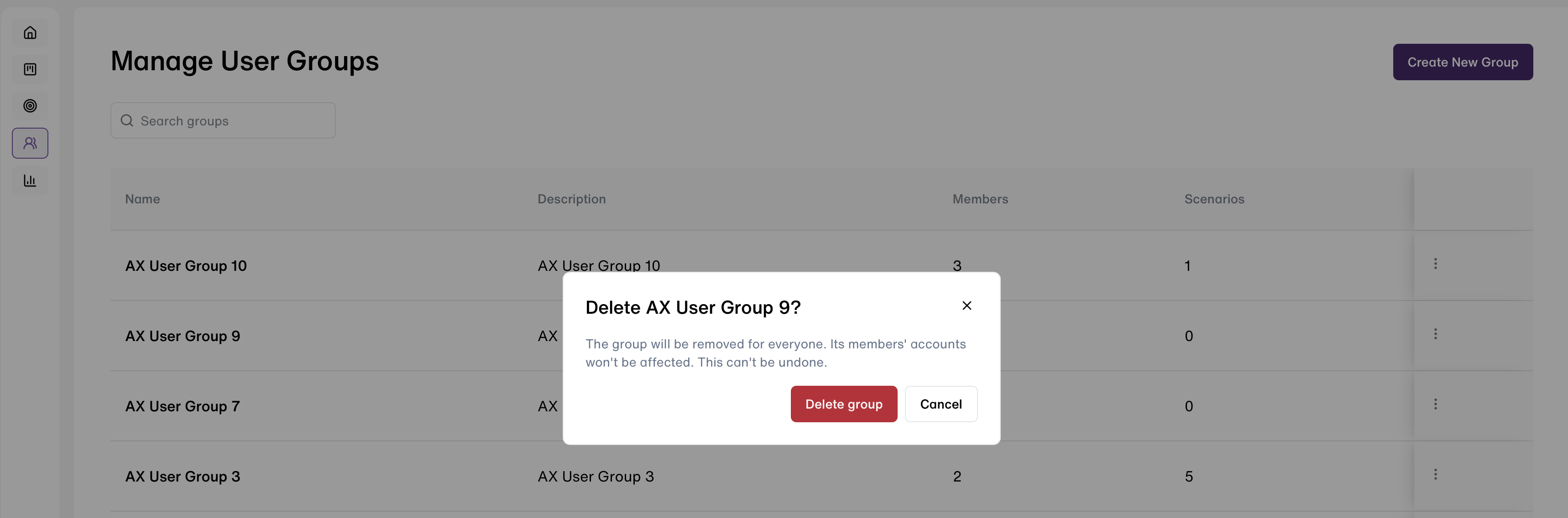
To delete a group, the user selects Delete from the actions menu and confirms. The confirmation shows how many scenarios are assigned to the group.
Scenario assignment:
- To assign a scenario to a group, the user opens the scenario assignment flow and selects the group in the Groups tab.
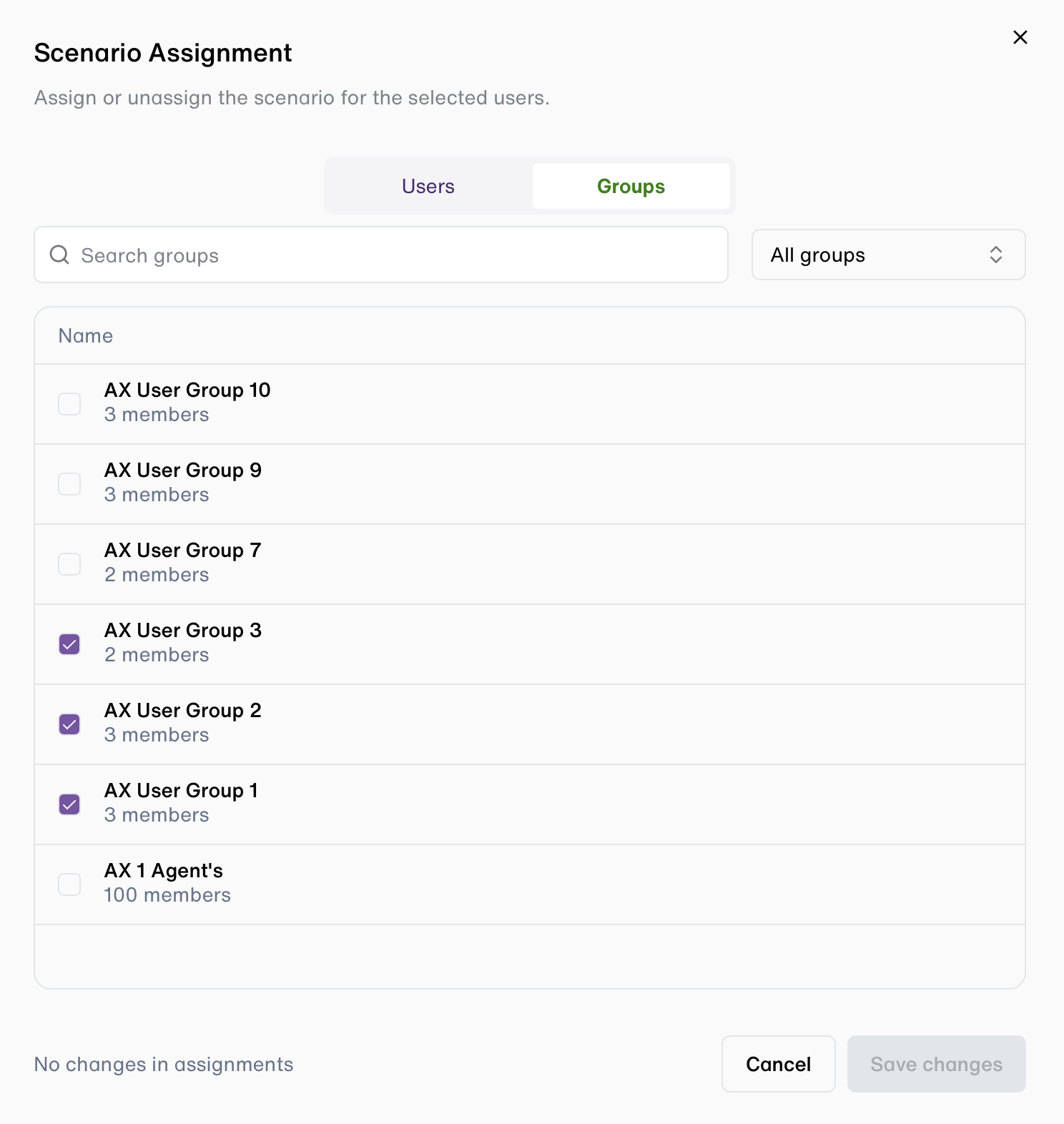
- Every current member receives the scenario, and members who already had it keep their progress.
- When an agent is added to the group, they receive the group's scenarios automatically.
- Scenarios received through a group appear as "via [group name]" and cannot be unassigned individually.
- To remove one, the user removes the scenario from the group or the agent from the group.
Report Dashboard
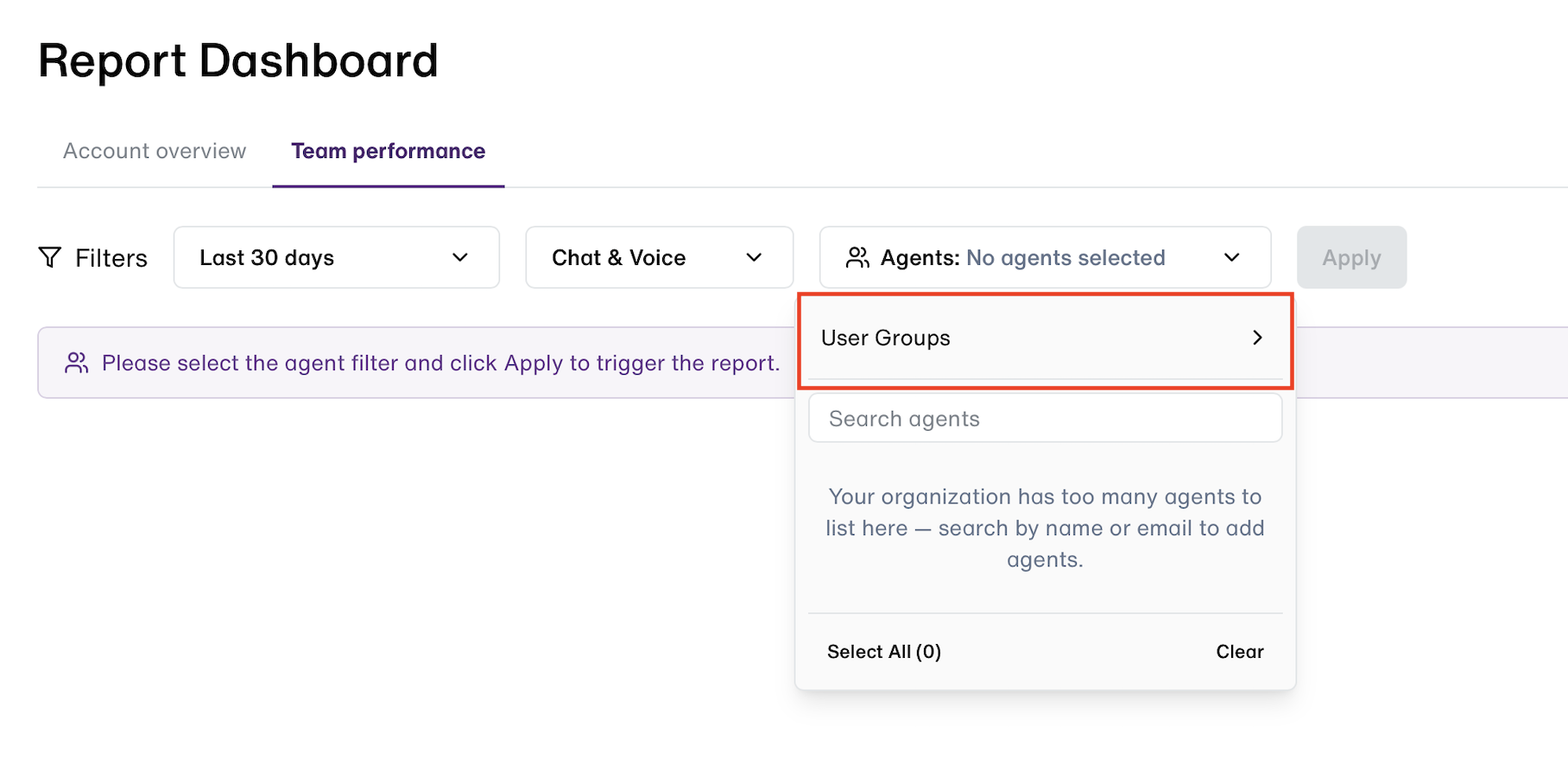
- To review performance by group, the user opens the Team Performance tab of the Report Dashboard and filters either by individual agents or by one or more groups.
Updated 6 days ago